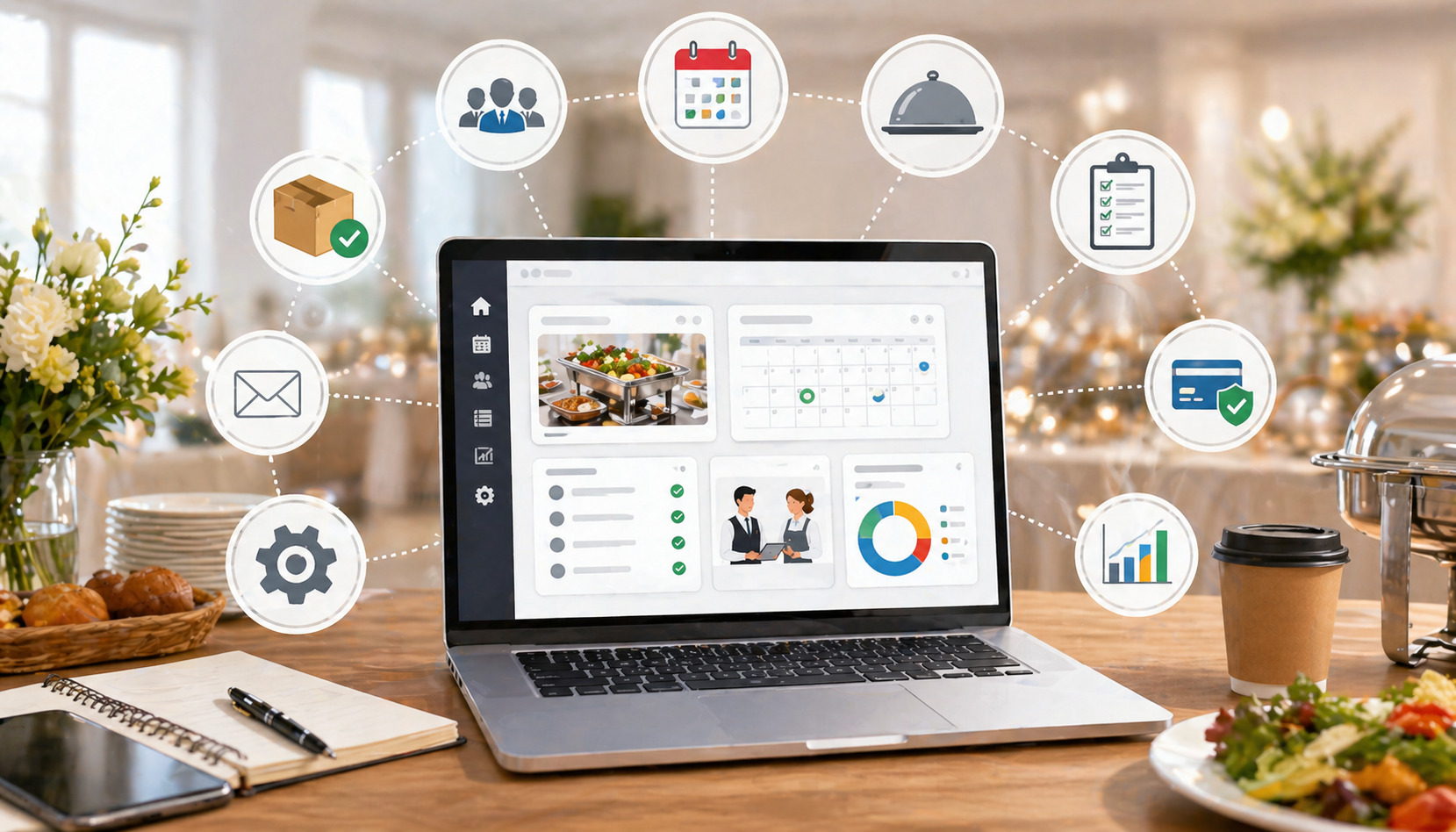
Setting up catering software is more than entering menus and adding client names. A strong Setup Checklist for Catering Software helps your team turn a new platform into a dependable operating system for sales, planning, kitchen production, delivery, billing, and post-event follow-up.
For caterers, event planners, restaurant catering teams, venue operators, and business owners, the setup stage is where the software either becomes a daily advantage or another tool people work around. The difference usually comes down to preparation.
A thoughtful catering software setup checklist gives your team a clear path: define goals, clean data, configure workflows, test real event scenarios, train staff, and keep improving after launch. It prevents rushed decisions, duplicate entries, missing deposits, incorrect service fees, confusing staff assignments, and event details getting lost between departments.
The goal is not to make the system complicated. The goal is to make it reliable. When your catering business software setup reflects how your team actually sells, prepares, delivers, and bills events, the software becomes easier to trust and easier to use.
What Catering Software Setup Involves
Catering software setup involves configuring the system so it matches your real catering workflow from first inquiry to final payment.
It includes importing client and event data, building menus, setting pricing rules, creating proposal templates, connecting payment and accounting tools, assigning user permissions, and training each department on the steps they need to follow.
A complete catering management software setup should account for both front-office and back-of-house needs. Sales teams need lead tracking, proposals, contracts, deposits, and client communication.
Kitchen teams need accurate menus, production counts, allergens, prep notes, packaging details, and event timelines. Delivery teams need routes, contact details, arrival windows, equipment lists, and on-site instructions. Finance teams need invoices, refunds, taxes, service charges, and reports.
This is why setup should not be handled by one person in isolation. The best results come from involving the people who manage leads, build menus, approve pricing, schedule staff, pack orders, handle payments, and review reports. Each team sees details that others may miss.
A helpful starting point is understanding what modern platforms typically support, such as order management, menu planning, scheduling, CRM, inventory, billing, and reporting. For additional context, this guide to catering management software and how it works explains the broader operational role these systems can play.
Why Setup Is Different from Software Selection
Choosing software is about finding the right tool. Setup is about making that tool work for your business. A catering platform may include powerful features, but those features only help if they are configured correctly.
For example, a system may support deposits, but someone still needs to decide whether deposits are percentage-based, fixed, refundable, non-refundable, or tied to certain event types. A platform may include staff scheduling, but it still needs role names, labor categories, overtime rules, availability practices, and notification settings.
Software selection asks, “Can this system do what we need?” Setup asks, “How exactly should it do it for us?”
That distinction matters because catering operations often vary by event type. Corporate lunches, weddings, school contracts, venue banquets, drop-off orders, full-service events, and last-minute catering orders may each require different lead times, menu rules, pricing structures, staffing needs, and approval steps.
Who Should Be Involved in the Setup Process
A successful catering operations software checklist should include input from every department that depends on event information. At minimum, involve someone from sales, operations, kitchen, delivery, finance, and management.
Sales can explain how inquiries become proposals and what information clients usually provide early. Operations can explain timelines, staffing patterns, rentals, equipment, and event-day details. Kitchen staff can identify recipe, portioning, allergen, prep, and packaging needs.
Delivery teams can point out address, parking, dock, access, and contact requirements. Finance can confirm invoice, tax, payment, deposit, and refund practices.
This does not mean every person needs admin access or a seat in every meeting. It means the setup lead should gather details from each department before locking in workflows.
When setup is handled only from an office perspective, kitchen and delivery teams often discover gaps after launch. When it is handled only from an operations perspective, sales and finance may struggle with proposals and payment tracking. Balanced input creates a system that supports the whole event lifecycle.
Why a Clear Setup Checklist Prevents Errors and Delays
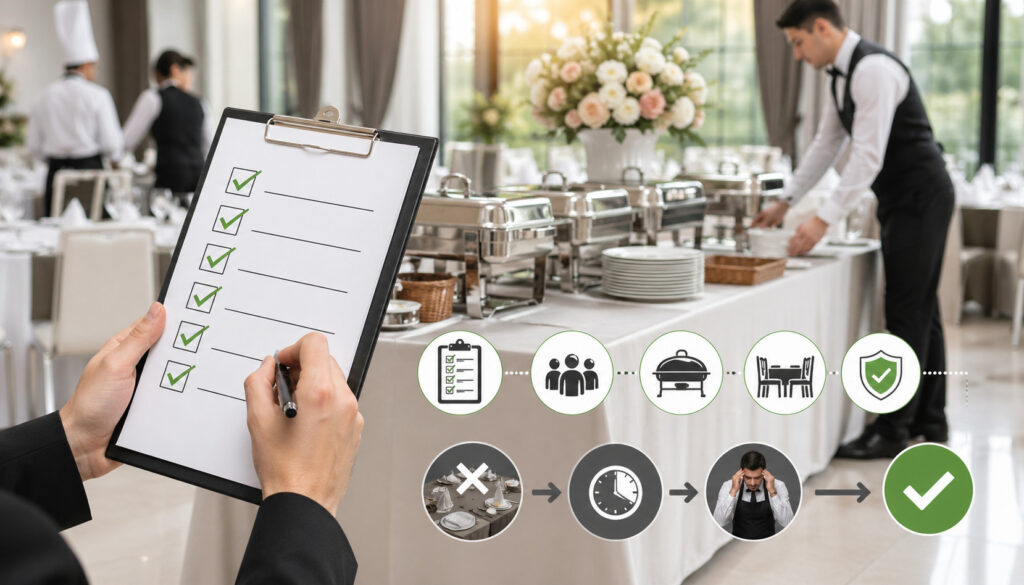
A clear Setup Checklist for Catering Software helps prevent missed steps during a busy implementation. Catering businesses already operate under tight timelines, changing headcounts, client revisions, vendor deadlines, staffing limits, and production pressure.
Without a checklist, setup decisions can become scattered across emails, meetings, spreadsheets, and memory.
The result is predictable: one person configures menus, another imports client data, someone else creates invoice templates, and nobody confirms whether taxes, service fees, deposits, and contracts are aligned. The system may appear ready, but small setup gaps create problems once real events begin moving through it.
A checklist reduces that risk by creating order. It helps your team know what must be cleaned, configured, reviewed, tested, approved, and maintained. It also helps prevent a common mistake: launching too early because the basics are entered, even though key workflows have not been tested.
For example, if your proposal template does not pull the correct menu descriptions, your sales team may send confusing quotes. If deposits are not mapped correctly, finance may have to reconcile payments manually. If delivery notes are optional, drivers may arrive without dock instructions or point-of-contact details.
A checklist does not slow the project down. It saves time by preventing rework.
Common Problems a Checklist Helps Avoid
A catering software setup checklist can prevent many issues that show up only after the team starts using the system daily.
Common problems include:
- Duplicate client records caused by messy imports
- Old menu items appearing in new proposals
- Incorrect package pricing or guest minimums
- Missing tax settings for certain event types
- Service fees applying inconsistently
- Deposits not connected to invoices
- Contracts using outdated terms
- Staff receiving incomplete event details
- Kitchen prep lists missing modifiers or allergies
- Delivery teams lacking arrival windows or access notes
- Reports showing unreliable revenue or margin data
These issues are frustrating because they often feel like software problems when they are really setup problems. The system can only produce clean outputs when the inputs, rules, templates, and workflows are clean.
Why Setup Mistakes Become Operational Mistakes
Catering work depends on accurate details. A missing modifier is not just a data entry issue; it can become a kitchen correction. A wrong guest count is not just a CRM issue; it can affect food cost, labor planning, delivery timing, and client satisfaction.
This is why catering workflow setup deserves careful attention. Software becomes the source of truth for multiple departments. If the source of truth is incomplete, every downstream team feels it.
Consider a full-service event. Sales enters the client details, menu, guest count, service style, and deposit requirement. Operations adds staffing, rentals, floor timing, and delivery notes. Kitchen uses the event data to plan prep and production.
Finance uses the same event to invoice and collect payment. If the original event record is incomplete, every team either guesses, asks follow-up questions, or creates a separate workaround.
Workarounds may seem harmless at first. But over time, they create version-control problems. One team trusts the software, another trusts a spreadsheet, and another trusts a text thread. A strong setup process prevents this by making the software complete enough for teams to rely on it.
Define Business Goals Before Configuration

Before you begin configuration, define what success should look like. This step is often skipped because teams are eager to import data and start building menus. But your business goals should shape your catering business software setup from the beginning.
Start with the operational pain points you want to solve. Are you losing time creating proposals? Are event changes getting missed? Are deposits difficult to track? Is the kitchen receiving incomplete information? Are invoices delayed after events? Are sales and operations using different records? Are reports unreliable?
Once the problems are clear, turn them into setup goals. For example, “reduce proposal creation time” may require proposal templates, saved packages, standard menu descriptions, and automated pricing rules.
“Improve event-day execution” may require event timelines, task lists, staff roles, reminders, and required fields for delivery details. “Improve cash flow” may require deposit rules, payment reminders, invoice automation, and refund tracking.
Your goals should be specific enough to guide decisions. A vague goal like “be more organized” is harder to configure around. A stronger goal is “make every confirmed event include a signed contract, paid deposit, final guest count, production notes, delivery instructions, and assigned event captain before it appears on the weekly production schedule.”
Map Your Current Workflow First
Before changing your process, map your current one. Write down how an event moves from inquiry to closeout today.
Include these steps:
- Lead received
- Client qualified
- Proposal created
- Menu revised
- Contract sent
- Deposit collected
- Event confirmed
- Timeline built
- Staff assigned
- Kitchen production planned
- Inventory reviewed
- Delivery scheduled
- Event completed
- Invoice finalized
- Payment reconciled
- Client follow-up completed
Then identify where mistakes or delays happen most often. Do proposals wait on manager approval? Do menus get changed after kitchen prep starts? Do delivery notes arrive too late? Do invoices go out days after the event?
This workflow map becomes the foundation for your catering management software setup. Instead of forcing your team into random default settings, you can configure the system around the real process you want people to follow.
Decide What Must Be Standardized
Catering businesses need flexibility, but too much flexibility creates inconsistency. Setup is the right time to decide what should be standardized.
Standardization may include menu categories, package names, proposal formats, service fee rules, deposit terms, contract language, event statuses, staff roles, production deadlines, invoice templates, and reporting categories. When these items are standardized, teams spend less time reinventing the process for each event.
For example, you may decide that all events must move through statuses such as Inquiry, Proposal Sent, Tentative, Confirmed, Final Count Due, In Production, Completed, and Closed. This makes reporting easier and helps staff understand where each event stands.
You may also standardize package structures. Instead of having ten different versions of a breakfast package, create approved packages with optional modifiers. This improves sales consistency and helps kitchen teams plan more accurately.
Standardization should support better service, not limit thoughtful customization. The goal is to make common work easier while still allowing special events to receive special attention.
Clean and Import Client, Menu, Vendor, Pricing, Inventory, and Event Data
Data migration is one of the most important parts of event catering software setup. If old data is imported without cleanup, your new system may start with duplicates, outdated contacts, incorrect pricing, inactive menu items, missing tax categories, and unreliable client history.
Begin by identifying which data is worth migrating. Not every old record needs to move into the new system. You may want active clients, recent leads, recurring accounts, current menus, approved packages, active vendors, current pricing, standard contracts, open invoices, upcoming events, and useful historical event data.
Then clean the data before import. Merge duplicate client records. Remove inactive vendors. Standardize phone numbers, email addresses, addresses, and company names. Mark old menu items as inactive instead of letting them appear in live proposals.
Review pricing to confirm it reflects current costs and margins. Check inventory units so “case,” “tray,” “pan,” “pound,” and “each” are used consistently.
Data cleanup may feel tedious, but it is far easier to fix records before import than to correct hundreds of issues after the team is already using the platform.
For menu-related setup, this article on menu planning with catering software offers useful context on how recipe management, costing, inventory, and client communication can connect inside a catering workflow.
Prepare Client and CRM Data
Catering CRM setup should begin with clean client records. Clients may include corporate accounts, individual event hosts, wedding planners, venue contacts, nonprofit organizations, schools, recurring meal clients, and vendor partners.
For each client record, decide which fields matter. Useful fields may include client name, company name, billing contact, event contact, email, phone, address, tax-exempt status, preferred communication method, dietary notes, past event types, referral source, account owner, and special billing instructions.
Avoid importing outdated notes that may confuse staff. Old, unclear, or inaccurate notes can be worse than no notes. If a note is important, rewrite it so it is useful to the next person who opens the record.
Also decide how duplicates will be handled. For example, one company may have several contacts. Do you want one account with multiple contacts, or separate records by department? Make this decision before import.
Prepare Menu, Package, and Pricing Data
Menus are central to catering operations, so they deserve careful setup. Begin by separating active items from inactive or seasonal items. Then organize items into clear categories such as breakfast, boxed lunches, buffets, plated meals, appetizers, beverages, desserts, rentals, staffing, delivery, and add-ons.
For each menu item, include the details staff need to sell and produce it correctly. This may include description, portion size, minimum order quantity, guest count rules, dietary tags, allergen notes, preparation notes, packaging requirements, serving temperature, image, cost, price, and profit margin.
Packages should be reviewed carefully. A package may include multiple menu items, service items, equipment, and optional upgrades. Confirm whether package pricing is per person, per tray, per event, or tiered by guest count.
Pricing also needs structure. Decide which items are fixed, variable, market-priced, manager-approved, or custom quoted. If your team handles weddings, corporate events, schools, venues, and drop-off orders, each may need different pricing rules.
Accurate menu and pricing setup helps prevent underquoting, inconsistent proposals, and production confusion.
Prepare Vendor, Inventory, and Event Data
Vendor and inventory data should support purchasing, production, and event readiness. Start with active vendors only. Include contact details, order deadlines, delivery days, payment terms, preferred items, backup suppliers, and internal notes.
Inventory setup should focus on the items you actually track. Some catering teams track every ingredient. Others track high-value items, disposables, beverages, rentals, equipment, and prepared products. Choose a level of detail your team can maintain consistently.
Important inventory fields may include item name, category, unit of measure, par level, reorder point, vendor, cost, storage location, and substitution notes. Be consistent with units. If one recipe uses ounces and another uses pounds, production and purchasing reports may become difficult to trust.
Upcoming events should also be imported carefully. Active events need client details, event date, location, guest count, menu, pricing, deposits, timeline, staffing, delivery notes, and status. Do not import upcoming events as incomplete shells unless your team has a clear process for finishing them before launch.
Configure Menus, Packages, Modifiers, Taxes, Service Fees, Deposits, and Contracts

Once your data is clean, the next step in the catering software setup checklist is configuration. This is where your software starts reflecting your business rules.
Menu configuration should make ordering and production easier. Set up menu categories, item descriptions, serving sizes, minimums, lead times, and availability rules. Build packages for common event types. Add modifiers for choices like protein selection, side options, spice level, dietary substitutions, beverage upgrades, serving style, packaging type, and rental needs.
Modifiers are especially important because they keep customization structured. Without modifiers, staff may type special requests into notes, which can be missed by kitchen or delivery teams. With well-built modifiers, the system can carry selections into proposals, prep sheets, labels, production reports, and invoices.
Tax, service fee, deposit, and contract setup require careful review. These settings affect client expectations, compliance, cash flow, and financial reporting.
Confirm how taxes apply to food, beverages, service charges, delivery, rentals, staffing, and other event components. Decide how service fees should be calculated and displayed. Define deposit requirements by event type, order size, client category, or booking timeline.
Contracts should include approved terms, cancellation policies, payment deadlines, change deadlines, liability language, guest count policies, and signature requirements.
Menu and Modifier Configuration
Menu setup should help staff build accurate orders quickly. Start with your most common event types and create menu structures that match how clients buy.
For example, a corporate lunch may need boxed lunch categories, sandwich choices, sides, drinks, delivery windows, disposable serviceware, and dietary labels. A full-service wedding may need plated courses, hors d’oeuvres, bar packages, staffing, rentals, tasting notes, timeline details, and service style.
Modifiers should be clear and limited to meaningful choices. Too many modifiers can overwhelm sales staff and clients. Too few can push important details into notes. Find the balance by reviewing the options your team uses most often.
Examples of useful modifiers include:
- Vegetarian, vegan, gluten-conscious, dairy-free, or nut-free preparation requests
- Protein choices
- Side selections
- Sauce selections
- Packaging type
- Serving utensils
- Disposable or upgraded serviceware
- Delivery, pickup, or full-service setup
- Hot holding or cold storage requirements
Taxes, Fees, Deposits, and Contracts
Financial configuration deserves extra attention because small errors can affect every order. Work with your finance lead, accountant, or tax advisor when setting tax categories and rules.
Create clear categories for food, beverages, rentals, delivery, staffing, service charges, and optional fees. Confirm when tax applies and how it should appear on proposals and invoices. Also decide who can override pricing, waive fees, or apply discounts.
Service fees should be defined consistently. If your business charges an administrative fee, production fee, delivery fee, staffing fee, or event service charge, make sure the system calculates and labels it correctly. Clients should be able to understand what they are reviewing.
Deposits should connect naturally to the sales workflow. Decide when deposits are required, how much is due, whether partial payments are allowed, what payment methods are accepted, and how unpaid deposits affect event status.
Contracts should be reviewed before launch. Use current approved language and confirm that merge fields pull the correct client name, event date, venue, menu, guest count, payment terms, and cancellation policy.
Configure Calendars, Event Timelines, Reminders, Task Lists, and Staff Roles
Catering scheduling software setup is one of the most valuable parts of implementation because calendars drive daily visibility. A well-configured calendar helps sales, kitchen, operations, and delivery teams see what is coming, what is confirmed, what is tentative, and what needs attention.
Start by deciding which calendars your team needs. You may need separate views for inquiries, confirmed events, kitchen production, tastings, deliveries, staff assignments, venue bookings, equipment rentals, and payment deadlines. Some teams prefer one master calendar with filters. Others prefer department-specific calendar views.
Event timelines should include key milestones such as proposal due date, tasting date, deposit deadline, final guest count deadline, menu change cutoff, rental order deadline, production start, packing deadline, delivery departure, setup time, service start, breakdown, invoice date, and follow-up.
Task lists turn event planning into accountable work. Instead of relying on memory, build reusable task templates for different event types. A drop-off lunch, full-service banquet, wedding, recurring corporate order, and venue event may each need different tasks.
Staff roles should be clear. Common roles include sales owner, event manager, chef, kitchen lead, packer, driver, server, bartender, event captain, billing owner, and admin.
Build Calendar Views That Match Daily Work
Calendar views should answer the questions your team asks every day. Sales may ask, “Which proposals are due?” Kitchen may ask, “What events are in production this week?” Delivery may ask, “What leaves the building tomorrow?” Finance may ask, “Which deposits are overdue?” Management may ask, “What is confirmed, tentative, and at risk?”
Configure calendar filters around these needs. For example, create views by event status, department, location, event type, service style, delivery route, sales owner, or production date. The easier it is to filter the calendar, the less likely people are to create side spreadsheets.
Color coding can be useful if it is simple. Too many colors can create confusion. Use colors only for high-value distinctions such as confirmed versus tentative, pickup versus delivery, or full-service versus drop-off.
For more detail on scheduling and operational capabilities, this overview of features in a catering operations platform can help teams think through which functions matter most.
Configure Reminders and Task Templates
Reminders should protect deadlines. They should not overwhelm staff with unnecessary alerts.
Set reminders for moments that affect service quality, cash flow, or production accuracy.
Examples include deposit due dates, final guest count deadlines, menu cutoff dates, tasting follow-ups, rental order deadlines, staffing confirmation, prep start dates, delivery departure times, and post-event billing.
Task templates are especially helpful for repeatable workflows. A corporate drop-off order might need tasks for confirming guest count, printing labels, checking disposables, assigning driver, confirming delivery windows, and sending invoices.
A full-service event might need tasks for rental confirmation, staffing plan, floor plan, menu finalization, production meeting, packing list, event captain briefing, and post-event review.
Assign tasks to roles when possible, not just names. This makes the workflow easier to maintain when staff schedules change. For example, assign “confirm rentals” to Operations Lead rather than a specific person if coverage rotates.
Review reminder timing carefully. A reminder that fires too late is useless. A reminder that fires too often will be ignored.
Set Up Proposals, Invoices, Payments, Refunds, and Reporting
A complete catering operations software checklist must include sales and finance workflows. Catering software should help the team move from inquiry to proposal, proposal to contract, contract to deposit, deposit to event execution, and event completion to final payment.
Proposal templates should look professional, but clarity matters more than design. Clients should be able to understand the menu, quantities, guest count, services, fees, taxes, deposit, payment terms, cancellation terms, and next steps. Internally, proposals should connect to the event record so confirmed details flow into operations.
Invoices should match your billing process. Some businesses invoice before the event, some after, and some use deposits with final balances due before service. Decide how the software should handle partial payments, multiple payments, corporate billing accounts, tax-exempt clients, refunds, credits, and late balances.
Payment configuration should include accepted payment methods, processing rules, deposit links, payment reminders, refund workflows, and reconciliation practices. Make sure finance knows where to find payment status and how to handle exceptions.
Reporting should be configured before launch, not after. Decide which numbers matter most: booked revenue, collected revenue, outstanding balances, event profitability, sales by event type, menu item performance, labor cost, delivery fees, client activity, lead sources, and cancellation patterns.
Proposal and Invoice Templates
Proposal templates should support both speed and accuracy. Build templates for your most common event types rather than forcing every proposal to start from scratch.
A strong proposal template may include:
- Client and event details
- Menu selections
- Guest count
- Service style
- Delivery or venue information
- Itemized pricing
- Taxes and fees
- Deposit amount
- Payment schedule
- Change deadlines
- Cancellation terms
- Signature area
- Internal notes hidden from the client
Invoices should be equally clear. Confirm that item names, quantities, discounts, taxes, fees, deposits, payments, and balances display correctly. Test invoices for different scenarios, including deposits, partial payments, refunds, tax-exempt clients, custom packages, and multiple event dates.
Payment, Refund, and Reporting Configuration
Payment workflows should be easy for clients and reliable for finance. Set up payment links, deposit rules, accepted methods, receipt templates, reminder timing, and internal payment notifications.
Refund rules should also be documented. Decide who can issue refunds, when manager approval is required, how refunds are recorded, and how credits are handled for future events. This prevents inconsistent handling when cancellations or guest count changes occur.
Reporting setup should begin with a small set of trusted reports. Avoid launching with too many dashboards. Start with the reports your team will actually review, such as upcoming confirmed revenue, outstanding deposits, unpaid invoices, sales pipeline, event profitability, and menu performance.
Make sure report categories match how you manage the business. If event types are inconsistent, reports will be messy. For example, “Corporate,” “Corp,” “Office Lunch,” and “Business Catering” may all mean similar things but appear as separate categories unless standardized.
Reliable reporting depends on clean data entry. Required fields, clear categories, and consistent statuses make reports more useful.
Connect Integrations Such as POS, Accounting, Email, Payment Tools, and Scheduling Platforms
Integrations can reduce duplicate entry and help teams keep information aligned. Common connections include POS systems, accounting software, email platforms, payment processors, scheduling tools, online ordering forms, calendar systems, CRM tools, and delivery platforms.
Before connecting integrations, define what each connection should do. Do you want orders to flow from catering software into a POS? Should invoices sync to accounting? Should payment status update automatically? Should event reminders appear on staff calendars? Should client emails be logged in the CRM? Should online inquiries create leads?
Do not connect tools just because the option exists. Every integration should have a purpose, an owner, and a testing plan. Poorly configured integrations can create duplicate records, mismatched payments, incorrect accounting entries, or confusing notifications.
A careful integration process includes field mapping, permission review, test transactions, error handling, and reconciliation checks. For example, if invoices sync to accounting, confirm that taxes, fees, deposits, discounts, refunds, and payment methods land in the correct accounts.
For a broader look at connecting software into daily operations, this resource on integrating catering software into a business workflow covers useful planning areas such as CRM, proposals, payments, and KPIs.
Integration Planning Questions
Before turning on integrations, answer practical questions.
Ask:
- Which system should be the source of truth for client records?
- Which system should be the source of truth for payments?
- Should menu items sync one way or both ways?
- How will refunds be recorded?
- How will tax categories map between systems?
- What happens if a payment fails?
- Who receives integration error alerts?
- How often does data sync?
- How will duplicate records be prevented?
- Who is responsible for reconciliation?
These questions may seem technical, but they are operational. If two systems disagree, staff need to know which one to trust.
Payment and Accounting Integrations
Payment and accounting integrations deserve special care because they affect cash flow and financial accuracy. Confirm that the payment tool can support your deposit process, balance payments, refunds, receipts, and client payment experience.
If accounting software is connected, map categories carefully. Food revenue, beverage revenue, delivery fees, service fees, staffing fees, rentals, discounts, taxes, tips, deposits, refunds, and processing fees may need separate treatment.
Also decide how deposits should appear. Some businesses treat deposits as liabilities until the event occurs. Others follow different accounting practices based on their advisor’s guidance. The software setup should support your chosen process.
Run test transactions before launch. Create a proposal, collect a deposit, generate an invoice, collect a balance, issue a partial refund, and confirm everything appears correctly in reports and accounting.
This testing may reveal setup issues early, when they are easier to fix.
Create User Permissions and Security Controls
User permissions are an essential part of catering software onboarding. Not every employee needs access to every feature, financial field, client record, or system setting. A good permission structure protects sensitive information while helping staff do their jobs.
Start by defining roles. Common roles may include owner, administrator, sales manager, salesperson, event manager, kitchen lead, kitchen staff, delivery driver, finance user, venue coordinator, and read-only user. Each role should have permissions based on responsibility.
For example, a salesperson may need to create leads, build proposals, send contracts, and view client history. They may not need to change tax settings or issue refunds.
A kitchen lead may need production reports, menu details, allergens, prep notes, and event counts, but not client payment methods. A finance user may need invoice, payment, refund, and reporting access, but not menu editing rights.
Security controls should also include password requirements, multi-factor authentication when available, account deactivation procedures, audit logs, and access reviews. When employees change roles or leave the business, access should be updated promptly.
Role-Based Access Setup
Role-based access makes permissions easier to manage. Instead of setting permissions individually for every user, create role groups with standard access levels.
A practical permission structure may look like this:
| Role | Typical Access | Restricted Access |
| Owner/Admin | Full settings, reports, users, billing, integrations | None or limited by policy |
| Sales | Leads, clients, proposals, contracts, event details | System settings, refunds, accounting setup |
| Operations | Event timelines, tasks, staffing, rentals, delivery notes | Payment tools, tax settings |
| Kitchen | Menus, production sheets, allergens, prep notes | Client financials, contracts |
| Delivery | Routes, event contacts, delivery windows, packing notes | Pricing, reports, settings |
| Finance | Invoices, payments, refunds, reports | Menu editing, production changes |
| Read-Only | View assigned information | Editing, financial actions, settings |
This table should be adapted to your business. The key is to match access to actual job duties.
Security Controls for Daily Operations
Security is not only about preventing outside threats. It is also about preventing accidental changes inside the business.
Use required fields and permission limits to protect important workflows. For example, only managers may approve discounts above a certain amount. Only finance may issue refunds. Only admins may edit tax settings. Only approved users may change contract templates.
Audit logs can be useful when available because they show who changed what and when. This helps resolve confusion when event details, pricing, or payment records are updated.
Also create a process for user changes. When someone joins the team, assign the correct role. When someone changes departments, update access. When someone leaves, deactivate access immediately.
Security should support trust. Staff should have enough access to work efficiently, but not so much access that sensitive or system-wide settings are exposed unnecessarily.
Test Real Event Scenarios Before Launch
Testing is where your catering software setup moves from theory to reality. Do not launch based only on whether fields are filled in. Launch only after your team has tested real event scenarios from start to finish.
Use past events as test cases because they include real complexity. Rebuild a corporate lunch, a wedding, a venue banquet, a last-minute drop-off, a tax-exempt client order, a refund scenario, a menu change, and a staffing-heavy event.
Then follow each one through inquiry, proposal, contract, deposit, calendar, tasks, production, delivery, invoice, payment, and reporting.
Testing helps reveal setup gaps. Maybe a package does not calculate correctly. Maybe the kitchen report is missing modifiers. Maybe payment reminders go to the wrong contact. Maybe delivery notes do not appear on the driver view. Maybe reports group event types incorrectly.
Do not treat these discoveries as failures. They are exactly why testing exists.
Test Scenarios to Run
Create a testing checklist that covers your real business.
Useful scenarios include:
- New lead to signed contract
- Corporate drop-off order
- Full-service event
- Wedding or large private event
- Recurring client order
- Last-minute order
- Menu revision after proposal
- Final guest count change
- Deposit collected online
- Split payment or partial payment
- Refund or cancellation
- Tax-exempt client
- Discounted order
- Rental-heavy event
- Staff scheduling conflict
- Delivery address change
- Post-event invoice and report review
Each test should have a reviewer from the department affected. Sales should review proposals. The kitchen should review production outputs. Delivery should review route and event instructions. Finance should review invoices and payments.
Create a Launch Readiness Review
Before going live, hold a launch readiness review. This meeting should confirm that the system is ready enough for daily use and that any remaining issues are documented.
Review these areas:
- Core settings
- Imported data
- Menu and package setup
- Taxes and fees
- Deposits and contracts
- Calendar views
- Task templates
- User permissions
- Integrations
- Proposal and invoice templates
- Reports
- Staff training
- Support process
- Open issues
Not every minor improvement must be finished before launch. But critical workflows should be stable. If deposits, invoices, kitchen reports, or event timelines are unreliable, pause and fix them first.
Assign owners for remaining items. A launch readiness review prevents vague statements like “we still need to clean some things up.” Instead, each issue has a person, deadline, and priority.
Train Sales, Kitchen, Delivery, Finance, and Event Staff
Training is a major part of catering software onboarding. Even the best setup will struggle if staff do not understand how to use the system correctly.
Training should be role-based. Sales does not need the same training as kitchen. Delivery does not need the same training as finance. Each team should learn the workflows they perform, the fields they must complete, the reports they should use, and the mistakes they need to avoid.
Start with the “why.” Explain how the software helps reduce duplicate entry, missed details, delayed invoices, unclear event notes, and last-minute confusion. When staff understand the purpose, they are more likely to follow the process.
Then train with real examples. Show sales how to create a proposal for a common event. Show the kitchen how to read production sheets and identify allergens. Show delivery how to find addresses, contacts, packing notes, and timing. Show finance how deposits, invoices, payments, and refunds flow through the system.
Role-Based Training Plan
A practical training plan should focus on daily tasks.
Sales training should cover leads, client records, proposals, packages, discounts, contracts, deposits, and communication notes. Sales staff should understand which fields are required before an event can move forward.
Kitchen training should cover production reports, menu details, modifiers, allergen notes, prep instructions, guest count changes, and printing or viewing kitchen documents.
Operations and event staff should learn timelines, task lists, staffing, rentals, venue notes, floor details, and event status updates.
Delivery staff should learn how to find assigned events, routes, delivery windows, parking details, client contacts, packing notes, and proof-of-delivery steps if used.
Finance training should cover invoices, payments, deposits, refunds, tax review, balances, reports, and reconciliation.
Build Confidence Before Full Adoption
Training should not be a single meeting. People need time to practice, ask questions, and correct habits.
A useful approach is to run supervised practice sessions. Have staff complete common workflows in a test environment or with sample events. Let them make mistakes while someone is available to help.
Identify internal champions. These are team members who understand the system well and can support others during the first weeks. Champions are especially helpful during busy service periods when staff need fast answers.
Also define where staff should ask questions. If questions are scattered across texts, hallway conversations, and emails, patterns will be missed. Use one shared channel, issue log, or manager-led process so repeated questions can turn into better training or setup improvements.
Confidence grows when staff see the system working. Start with clear workflows, reinforce good habits, and adjust where the process is causing unnecessary friction.
Step-by-Step Setup Checklist for Catering Software
The following Setup Checklist for Catering Software can be used as a practical rollout guide. Adjust it based on your business size, event types, staffing model, and software capabilities.
| Phase | Setup Task | Key Owner | Completion Check |
| Planning | Define business goals and pain points | Owner/Manager | Goals documented and approved |
| Planning | Map current catering workflow | Operations Lead | Workflow reviewed by all departments |
| Data | Clean client and CRM records | Sales/Admin | Duplicates removed and fields standardized |
| Data | Prepare menus, packages, and modifiers | Chef/Sales | Active items reviewed and approved |
| Data | Prepare vendor and inventory data | Kitchen/Operations | Units, costs, and vendors verified |
| Financial | Configure taxes and service fees | Finance/Admin | Test invoices calculate correctly |
| Financial | Set deposit and payment rules | Finance/Sales | Deposit workflow tested |
| Financial | Build proposal and contract templates | Sales/Admin | Templates reviewed internally |
| Scheduling | Configure calendars and event statuses | Operations | Calendar views match daily work |
| Scheduling | Build task templates and reminders | Operations | Event deadlines trigger correctly |
| Staffing | Set user roles and permissions | Admin | Access tested by role |
| Integrations | Connect payment, accounting, POS, email, or calendar tools | Admin/Finance | Test sync completed |
| Testing | Run real event scenarios | Cross-functional team | Issues logged and resolved |
| Training | Train each department by role | Department Leads | Staff complete practice workflows |
| Launch | Review launch readiness | Owner/Manager | Critical workflows approved |
| Post-Launch | Review issues and optimize workflows | Setup Lead | Improvement list maintained |
This table is not just a project tracker. It is a risk-control tool. Each row helps prevent a specific category of operational error.
Suggested Rollout Timeline
A staged rollout is usually safer than switching everything overnight without preparation. The timeline below can be adjusted for smaller or larger teams.
| Stage | Focus | What to Complete |
| Stage 1 | Planning and workflow mapping | Goals, event types, workflow map, setup owners |
| Stage 2 | Data cleanup | Client, menu, vendor, pricing, inventory, event data |
| Stage 3 | Core configuration | Menus, packages, taxes, fees, deposits, contracts |
| Stage 4 | Operations setup | Calendars, task lists, staff roles, reminders |
| Stage 5 | Finance and integrations | Invoices, payments, refunds, accounting, POS, email |
| Stage 6 | Testing and training | Real event scenarios, department training, issue fixes |
| Stage 7 | Launch and review | Go-live support, feedback, reports, improvements |
Do not rush the stages that affect money, production, or client commitments. These areas create the most visible problems when configured incorrectly.
Department Readiness Checklist
Before launch, each department should confirm readiness.
Sales should confirm they can create leads, build proposals, send contracts, collect deposits, and update event statuses. Kitchen should confirm they can access accurate menus, modifiers, allergens, production counts, and prep notes.
Operations should confirm timelines, tasks, rentals, staff assignments, and calendar views. Delivery should confirm routes, addresses, contacts, delivery windows, and packing details. Finance should confirm invoices, payments, deposits, refunds, taxes, and reports.
This department-level review catches issues that a general admin review may miss. It also creates accountability. Each team signs off on the parts of the system they depend on.
If a team is not ready, identify whether the issue is configuration, training, missing data, unclear process, or software limitation. Then address the root cause before launch.
Common Setup Mistakes and How to Avoid Them
Even experienced teams can make mistakes during catering management software setup. Most mistakes happen because the team is trying to move quickly, working from incomplete data, or assuming default settings will match their business.
One common mistake is importing too much old data. Historical records can be useful, but outdated menus, inactive clients, old pricing, and duplicate contacts make the new system harder to trust. Another mistake is skipping workflow mapping and configuring the software based on scattered preferences rather than a clear process.
Teams also underestimate training. They may show staff where buttons are but fail to explain the required workflow. When staff do not understand when to update statuses, where to enter notes, or how changes affect other departments, they return to side conversations and spreadsheets.
Another common issue is failing to test real event scenarios. A basic demo event may work perfectly, while a real event with deposits, modifiers, rentals, staffing, and last-minute changes exposes hidden gaps.
Mistakes During Data and Menu Setup
Data mistakes are among the easiest to prevent and hardest to clean up later.
Avoid these common issues:
- Importing duplicate clients
- Keeping inactive menu items active
- Using inconsistent naming conventions
- Failing to update pricing
- Missing allergen or dietary notes
- Not separating internal notes from client-facing descriptions
- Using unclear package names
- Allowing too many custom free-text entries
- Forgetting guest minimums or lead times
The solution is review. Have sales, kitchen, and finance review menu and pricing data together. Sales knows what clients expect to see. Kitchen knows what can be produced efficiently. Finance knows whether pricing supports margin.
Mistakes During Workflow and Training Setup
Workflow mistakes often happen when teams try to make the software match every exception. Exceptions matter, but the core workflow should be simple.
Avoid creating too many statuses, too many required fields, too many calendar views, or too many task templates at the beginning. Complexity can discourage adoption. Start with the workflows your team uses most often, then expand.
Training mistakes include relying on one long session, skipping role-based practice, and failing to train managers first. Managers need to understand the system deeply because staff will look to them when questions arise.
Another mistake is not defining support after launch. Staff need to know who to ask, where to report issues, and how quickly problems will be addressed.
The best prevention is structured onboarding: train by role, practice with real examples, document key steps, and review questions regularly.
Post-Launch Review, Workflow Improvements, and Ongoing Maintenance
Software setup does not end at launch. The first weeks of use will reveal what works well, what needs adjustment, and where staff need additional support. A post-launch review helps your team refine the system before small problems become habits.
Schedule regular check-ins after launch. Review open issues, staff feedback, client-facing documents, payment accuracy, event execution, reporting quality, and workflow bottlenecks. Look for patterns.
If multiple people are confused by the same field, the issue may be setup or training. If kitchen repeatedly misses a modifier, the menu structure may need adjustment. If finance keeps correcting invoices, fee or tax settings may need review.
Ongoing maintenance should include menu updates, pricing reviews, user access reviews, template updates, integration checks, report cleanup, and workflow improvements. Catering businesses change over time.
Menus evolve, costs shift, staff roles change, clients request new service styles, and event volume fluctuates. Your software should be maintained as an active operating tool, not a one-time project.
What to Review After Launch
Post-launch review should focus on practical outcomes.
Ask:
- Are staff using the software consistently?
- Are event records complete?
- Are proposals accurate and easy to understand?
- Are deposits being collected on time?
- Are kitchen reports complete?
- Are delivery details reliable?
- Are invoices going out correctly?
- Are reports trusted by management?
- Are integrations syncing properly?
- Are users asking the same questions repeatedly?
- Are any teams still using side spreadsheets?
Review both system data and staff experience. A report may show events are being entered, but staff may still feel certain steps are confusing. Listen for friction.
Ongoing Maintenance Checklist
Keep the system healthy with recurring maintenance.
Useful maintenance tasks include:
- Review menu pricing and food costs
- Deactivate outdated menu items
- Update package descriptions
- Audit user permissions
- Review tax and fee settings
- Update contract language when needed
- Check payment and accounting syncs
- Clean duplicate client records
- Review event statuses and task templates
- Refresh training materials
- Monitor reports for missing or inconsistent data
- Review client communication templates
Assign ownership for each area. If everyone assumes someone else is maintaining the system, quality will decline.
The best catering workflow setup is not static. It improves as your team learns, your services evolve, and your reporting needs become clearer.
FAQs
What is included in a catering software setup checklist?
A catering software setup checklist usually includes goal setting, workflow mapping, data cleanup, data import, menu configuration, package setup, pricing rules, taxes, service fees, deposits, contracts, calendars, reminders, task lists, user permissions, integrations, testing, staff training, launch review, and post-launch maintenance. The checklist should follow the full event lifecycle from inquiry to final payment.
How long should catering software onboarding take?
The timeline depends on business size, data quality, event complexity, number of users, integrations, and how much workflow cleanup is needed. A smaller catering team with clean data may move faster, while a larger operation with complex menus, multiple departments, and accounting integrations may need a more structured rollout.
What data should be cleaned before importing into catering software?
Before importing data, clean client records, contact details, menu items, package names, pricing, vendor records, inventory lists, event records, contracts, and open invoices. Remove duplicates, outdated records, inactive items, old prices, and unclear notes so the new system starts with reliable information.
Who should manage catering software setup?
A setup lead should manage the project, but input should come from sales, kitchen, operations, delivery, finance, and management. Each department understands important details that affect daily execution, so involving the right people helps prevent missed steps and workflow problems.
Why is testing real event scenarios important before launch?
Testing real event scenarios helps reveal setup gaps that simple sample orders may not show. Catering events often include menu changes, deposits, discounts, service fees, tax rules, staffing, rentals, delivery notes, guest count changes, and final invoices. Testing these situations before launch reduces errors and confusion.
How should user permissions be handled in catering software?
User permissions should be based on job responsibilities. Admins may need full access, while sales, kitchen, delivery, operations, and finance users should only access the tools and information required for their roles. Sensitive settings such as taxes, refunds, accounting integrations, contract templates, and user management should be limited to approved users.
What are the most common catering software setup mistakes?
Common setup mistakes include importing messy data, skipping workflow mapping, failing to standardize event statuses, rushing menu setup, not testing deposits and invoices, giving too many users admin access, connecting integrations without testing, and undertraining staff. A structured checklist and real event testing can help prevent these issues.
Conclusion
A thoughtful Setup Checklist for Catering Software helps your team turn a new platform into a dependable daily workflow. It gives structure to decisions that affect sales, menus, pricing, contracts, deposits, scheduling, production, delivery, billing, reporting, and client communication.
The setup process should begin with business goals and workflow mapping, not random configuration. From there, clean your data, build accurate menus and packages, configure taxes and fees, set up calendars and tasks, connect integrations carefully, protect access with permissions, test real events, and train each department by role.
Catering software works best when it reflects how your business actually operates while improving the parts that cause delays, confusion, or rework. A clear checklist keeps the process organized and helps prevent errors before they reach clients, staff, or event day.
Treat setup as an operational investment. When your catering software onboarding is done carefully, your team gains cleaner communication, stronger accountability, better financial visibility, smoother event execution, and more confidence in every order that moves through the system.