By cloudcateringmanager February 19, 2026
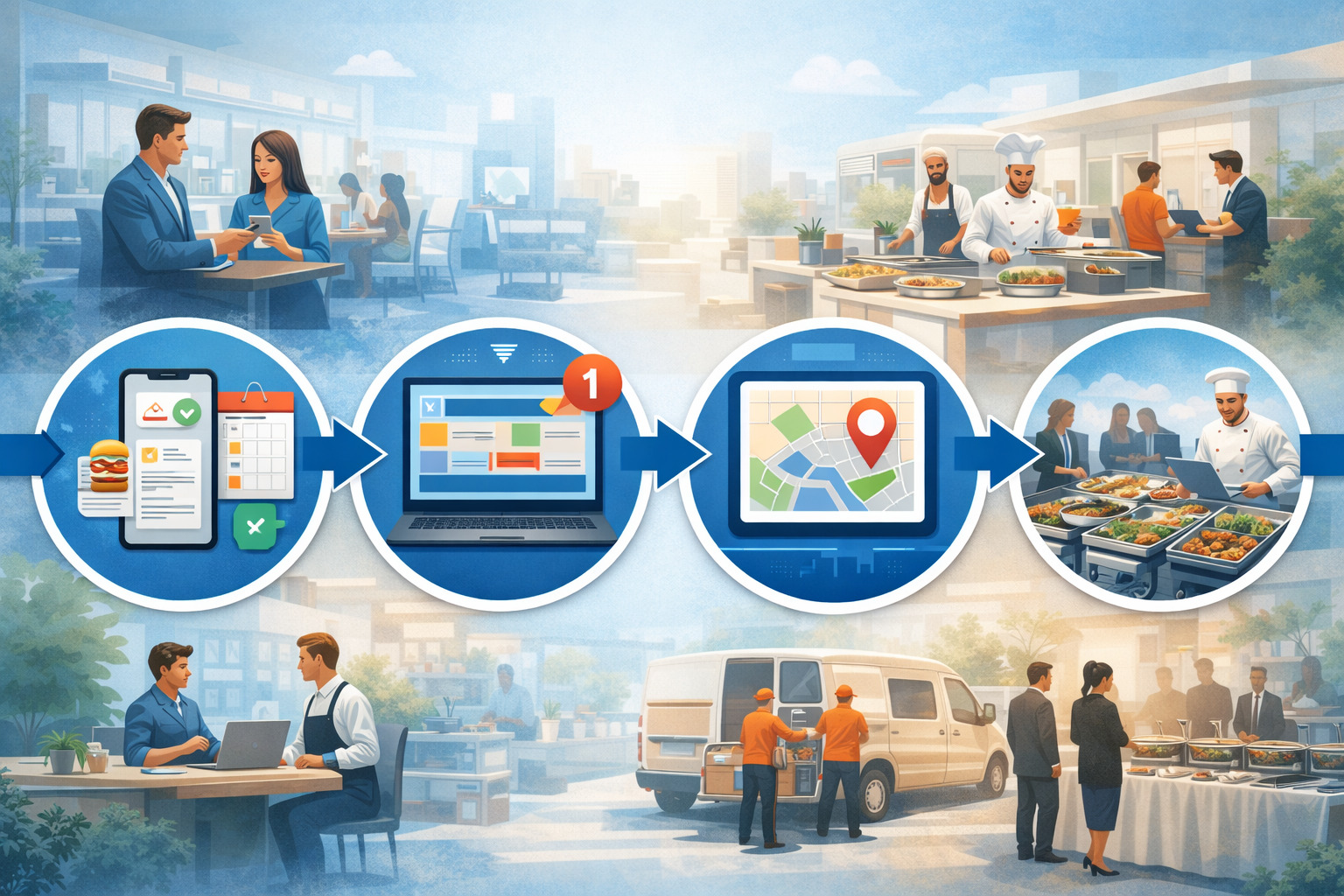
Running catering in 2026 is less about “put it on the calendar” and more about coordinating a moving operation: inquiries, menus, staffing, prep, packing, load-out, delivery routing, venue access, and post-event follow-up—often across multiple events in a single day. That’s why online catering scheduling software has become a core operations tool, not a “nice-to-have.”
A modern catering scheduling system combines catering calendar management, order details, production planning, and resource scheduling into one place.
Instead of juggling paper calendars, spreadsheets, texts, and sticky notes, cloud-based catering scheduling tools keep your team on the same page with real-time updates. The goal isn’t flashy features—it’s reliable execution: fewer conflicts, clearer handoffs, and predictable capacity.
This guide explains digital scheduling for catering businesses, shows how scheduling works end-to-end, and gives you checklists, examples, and a practical 30/60/90-day rollout plan you can actually use.
What “online catering scheduling” means
Online catering scheduling means using a centralized system to plan and coordinate everything required to deliver an event—before the event happens. It’s not just “date and time.” It’s a workflow that connects the booking to the operational steps required to fulfill it.
At a minimum, online scheduling includes:
- A shared calendar that reflects confirmed events and tentative holds
- Availability rules (what you can and can’t take)
- Conflict detection (double-booking prevention)
- Tasks and reminders that ensure nothing falls through the cracks
In a more complete setup, your scheduling system also connects to your catering order management details—so staff aren’t guessing menu quantities, prep instructions, service style, or special notes. That means your schedule includes production blocks, packing tasks, delivery windows, and staff shifts that are tied to each event.
Online scheduling can be customer-facing, team-facing, or both. Some businesses allow online booking and availability for specific packages and time windows.
Others keep booking internally but use the system to manage the entire catering booking workflow from inquiry to post-event follow-up. Either way, the core concept is the same: one source of truth that updates in real time.
How an online catering scheduling system works end-to-end
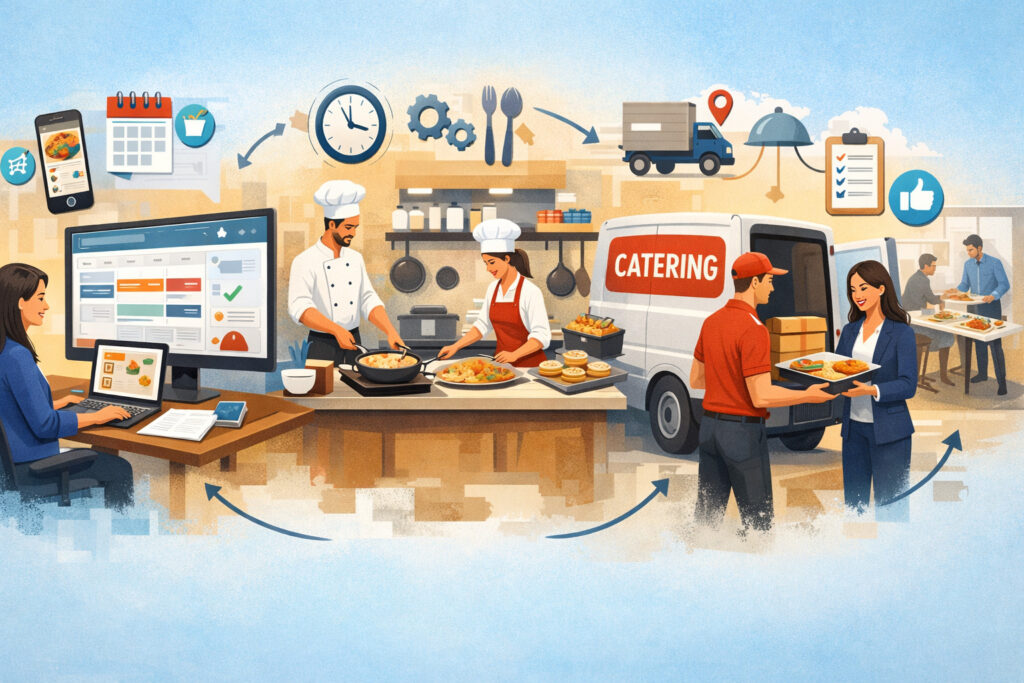
A catering schedule only succeeds when it mirrors how work really moves through your business. A strong event scheduling software for caterers setup supports the full lifecycle, not just the booking moment. Here’s the end-to-end flow most teams aim for.
1) Inquiry → availability check → quote (without guesswork)
The process starts with an inquiry from a customer, venue, or internal restaurant team. The system captures basic details (date, guest count, address/venue, service style, dietary needs) and immediately checks feasibility.
Your availability check should consider more than “is the date open?” It should evaluate:
- Kitchen capacity (how many events that day, peak times, oven space, cold storage)
- Staffing availability (lead, servers, bartenders, drivers)
- Delivery capacity (routes, driver scheduling, vehicle availability)
- Equipment capacity (hot boxes, cambros, chafers, linens, tables)
- Venue constraints (load-in times, elevator access, parking, security check-in)
A good system can apply these rules quickly, so you don’t quote events you can’t execute.
Pro Tip: Treat availability like a filter, not a feeling. Write down what “too busy” means and make your system enforce it.
Once feasible, you produce a quote (packages, add-ons, labor, delivery fees, rentals, taxes/fees). The quote stage is where scheduling and sales meet: the details you confirm here drive everything later.
2) Confirmation → deposit scheduling → calendar booking
After the customer approves the quote, you move to confirmation. This is typically where:
- You collect a deposit (if applicable)
- You issue a confirmation and event summary
- You convert a “hold” into a booked event
- You lock key constraints (service window, guest count range, menu revision cutoffs)
Many systems include deposit scheduling and payment reminders—so the booking isn’t fully confirmed until required payments are received. That reduces last-minute cancellations and helps your calendar reflect reality.
From an operations standpoint, the most important moment is when the event becomes “real” on the calendar with the correct time window and dependencies (prep blocks, staff shifts, delivery windows).
3) Staffing → kitchen production schedule → prep lists and packing lists
Once booked, the event creates operational work:
- Assign staff roles (lead, kitchen, service, bar, driver)
- Create a kitchen production schedule (what gets made when)
- Generate prep lists and packing lists tied to menu items and quantities
- Schedule equipment pulls and loading tasks
If your system supports templates, this becomes much faster. A “corporate drop-off lunch” can auto-create standard packing and timing tasks. A “wedding full-service” can create multi-phase production blocks and staffing requirements.
Pro Tip: Schedule “packing” as its own block. Packing is not prep. When packing runs late, everything runs late.
4) Delivery routing and driver scheduling → event run-of-show timeline
As the event approaches, dispatch becomes critical:
- Confirm delivery window and contact instructions
- Build delivery routing and driver scheduling plans
- Include travel time, parking, security, elevator time, and load-in buffer
- Attach an event run-of-show timeline for full-service events
For full-service, the run-of-show can include arrival times, setup, ceremony/cocktail transitions, dinner service, dessert, late-night snacks, and teardown. The schedule should be accessible on a mobile scheduling app for catering teams so staff can see updates on-site.
5) Post-event follow-up → notes → reporting
After the event, the system should help you close the loop:
- Capture what went well and what didn’t
- Record actual labor time and key issues
- Trigger an invoice balance reminder (if any)
- Prompt a review request or customer follow-up
- Feed reporting for capacity planning and profitability analysis
This is where scheduling becomes a long-term advantage. You’re not just executing; you’re learning and improving.
What gets scheduled (it’s more than the event date)
Many scheduling problems come from scheduling too little. Catering requires you to schedule the hidden work—prep, packing, and movement—plus the resources that make execution possible.
Events, prep blocks, and production phases
Every event should include multiple time segments, even for drop-off:
- Final menu confirmation deadline
- Production blocks (prep, cook, cool, assemble)
- Packing and labeling
- Load-out and staging
- Delivery window and buffer time
Full-service events add:
- Staff arrival and briefing
- Setup and staging
- Service timeline
- Teardown and return travel
- Post-event equipment check-in
A robust system makes these blocks visible so your team can see peak workload times instead of only seeing “events.”
Pro Tip: If you only schedule “service time,” your kitchen will always feel behind—because the schedule never acknowledges kitchen reality.
Staff scheduling for catering and role clarity
Staffing needs to be role-specific. “3 staff” is not a plan. Your schedule should define:
- Lead/manager (decision-maker on-site)
- Kitchen production team (prep vs hot line vs pastry)
- Packing runner (often overlooked)
- Drivers (with license/vehicle requirements)
- Service team (servers, bartenders, attendants)
Scheduling systems often allow shift templates by event type. The benefit isn’t just speed—it’s consistency. People show up knowing what they’re responsible for.
Resource scheduling: vehicles, equipment, and venues
Resource scheduling is where double-booking gets expensive. A scheduling system should track:
- Vehicles (vans, trucks, trailers) and capacity constraints
- Hot/cold holding equipment (cambros, hot boxes, coolers)
- Serving equipment (chafers, beverage dispensers, carving stations)
- Rentals (linens, tables, chairs—whether in-house or third-party)
- Venue constraints (load-in windows, noise rules, kitchen access, power)
When your schedule includes resources, you can plan realistically and avoid “we booked two events that both need the same hot boxes.”
Delivery windows, travel time, and driver routes
Delivery is a time-sensitive operation with real-world variables. Your schedule should include:
- Driver departure time (not just arrival time)
- Travel time plus buffer
- Parking/security/elevator assumptions
- Return time (so vehicles and drivers aren’t “free” too early)
For multi-drop routes, the system should show routing order, drop durations, and contact notes. Even without advanced route optimization, simply scheduling travel time prevents the most common timing failures.
Manual scheduling vs online scheduling: pros and cons
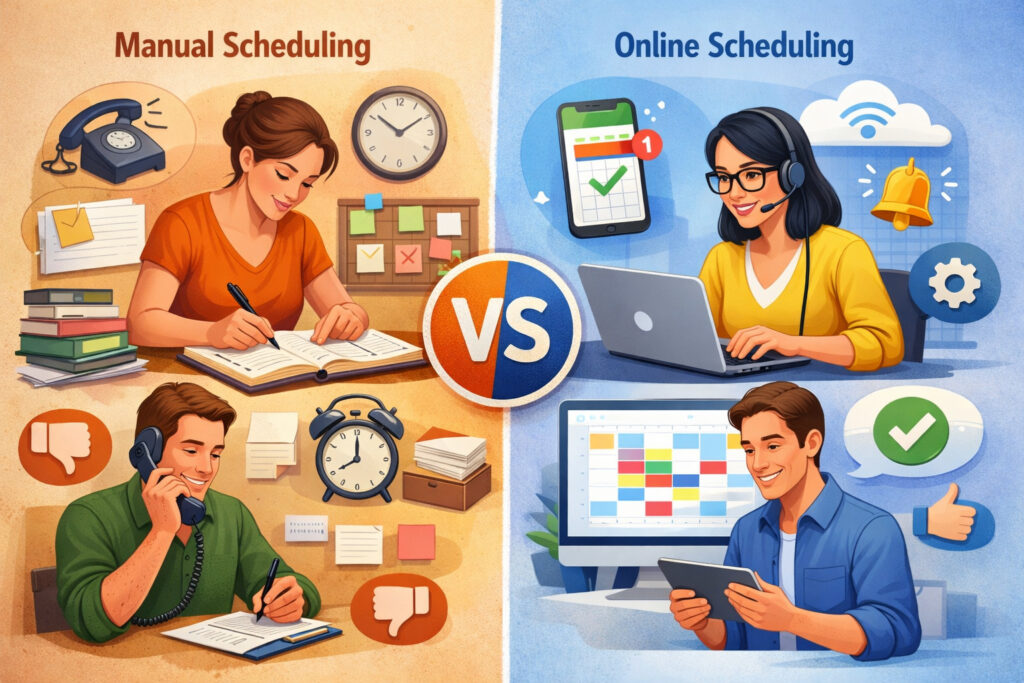
The move to a digital system should be based on operational fit—not hype. Manual tools still work in some environments, but they tend to break when volume grows, staff changes, or complexity increases.
| Approach | Pros | Cons |
|---|---|---|
| Manual scheduling (paper calendar, spreadsheet, texts) | Low cost, familiar, flexible for small teams | Hard to avoid double-booking, no real-time updates, scattered info, difficult capacity planning, fragile handoffs |
| Online catering scheduling software | Shared visibility, conflict detection, automation, scalable workflows, better resource scheduling | Setup time, training required, subscription cost, needs disciplined usage to work well |
Manual scheduling often fails quietly: the schedule looks fine until the day-of. Online systems fail more visibly if setup is incomplete (missing rules, templates, or roles). The key difference is that digital systems can be improved systematically once you see the gaps.
Pro Tip: A scheduling tool doesn’t fix a broken workflow. It makes the workflow visible—then you fix it.
Core features of cloud-based catering scheduling tools in 2026

The best cloud-based catering scheduling tools aren’t the ones with the longest feature list—they’re the ones that match how your catering operation runs. Below are the core capabilities that matter most for day-to-day execution.
Shared calendar, availability rules, and conflict detection
A central calendar is the foundation of a catering scheduling system. But the real power comes from rules and conflict detection.
Look for features like:
- Multiple calendar views (day/week/month, by kitchen, by delivery, by team)
- Color-coding by event type and status (inquiry, hold, confirmed, completed)
- Availability rules (blackout dates, max events per day, lead times)
- Conflict detection across staff, vehicles, and equipment
- Holds with expiration (so tentative events don’t block forever)
This is what prevents “two big events on the same oven-heavy day” or “one driver scheduled for two deliveries at the same time.”
Pro Tip: Start simple: enforce a few rules that eliminate 80% of conflicts (max events/day, minimum lead time, vehicle availability). Add sophistication after go-live.
Templates by event type and repeatable workflows
Templates help your schedule become operational, not just informational. A template might include:
- Standard time blocks (prep, packing, dispatch)
- Staff roles and default headcount
- Default equipment pulls
- Task lists (labels, allergen notes, garnish, sauce cups, utensils)
- Standard message templates (confirmation, reminders, day-of instructions)
Templates are especially valuable for high-volume catering (drop-offs, corporate programs) where consistency is the difference between smooth execution and chaos.
Pro Tip: Build templates around how you actually work today. You can refine them later. Perfect templates that nobody uses are worse than simple ones that everyone follows.
Automated scheduling reminders, tasks, and checklists
The most practical automation is the kind that prevents missed steps:
- Automated scheduling reminders for menu approvals and headcount confirmations
- Task assignments to specific roles (kitchen lead, packing lead, driver)
- Checklists that convert into prep lists and packing lists
- Triggered notifications for time-sensitive steps (load-out start, driver departure)
Automation should reduce admin work and reduce reliance on memory. It’s not about doing everything automatically; it’s about making sure the right people see the right tasks at the right time.
Mobile scheduling app for catering teams, real-time updates, and notifications
Catering teams aren’t sitting at desks. They need schedule access on mobile:
- Day-of schedule view with event details and contacts
- Real-time updates and notifications (time changes, venue notes, substitutions)
- Task completion tracking (packing finished, driver dispatched, setup complete)
- Offline-friendly access (helpful for venues with poor reception)
Mobile access prevents the “I didn’t see the update” problem and helps managers avoid constant phone calls.
Integration with order details, BEOs, invoices, and payments
Scheduling becomes far more reliable when it is connected to the event’s operational details. Many systems link scheduling with:
- Catering order management (menu items, quantities, dietary notes)
- BEOs (banquet event orders) or event sheets
- Invoices, deposits, and payment reminders
- Integration with CRM, POS, and accounting systems
Even if you don’t integrate everything immediately, make sure your scheduling system can pull in the information your team needs without retyping.
Pro Tip: If your team is copying details from email into a calendar entry, that’s a risk point. Reduce copying wherever possible.
Operational benefits that matter in the real world
A scheduling system earns its keep when it reduces errors and improves consistency. The benefits are operational—not theoretical.
Fewer conflicts and less double-booking
When your calendar includes resources and rules, you stop booking impossible days. Conflict detection helps you catch:
- Staff overlap (same lead on two events)
- Vehicle overlap (one van promised to two deliveries)
- Equipment overlap (limited hot boxes, chafers, or linens)
- Prep-time collisions (too much hot production at the same time)
The goal is fewer “we’ll figure it out” moments.
Better capacity planning for catering
Capacity planning is the difference between growth and burnout. With digital scheduling, you can see:
- Peak workload days and time windows
- Events by type (drop-off vs full-service)
- Staffing needs by role
- Equipment utilization patterns
Even basic reporting helps you decide whether you can take another event, when to limit bookings, or when to hire.
Pro Tip: Capacity isn’t just “how many events.” It’s “how many labor hours + how much equipment + how many delivery windows” you can support at once.
Less admin time and smoother handoffs
A centralized schedule reduces time spent:
- Confirming details across texts and emails
- Recreating event info for kitchen, service, and drivers
- Chasing last-minute approvals
- Fixing avoidable errors
The biggest time savings often come from consistent templates and automated reminders.
More predictable, on-time deliveries and service
On-time performance improves when the schedule includes:
- Packing blocks
- Buffer time
- Driver departure times
- Venue access constraints
This is where scheduling becomes execution. The calendar isn’t a record; it’s a plan.
Step-by-step setup guide for digital scheduling in a catering operation
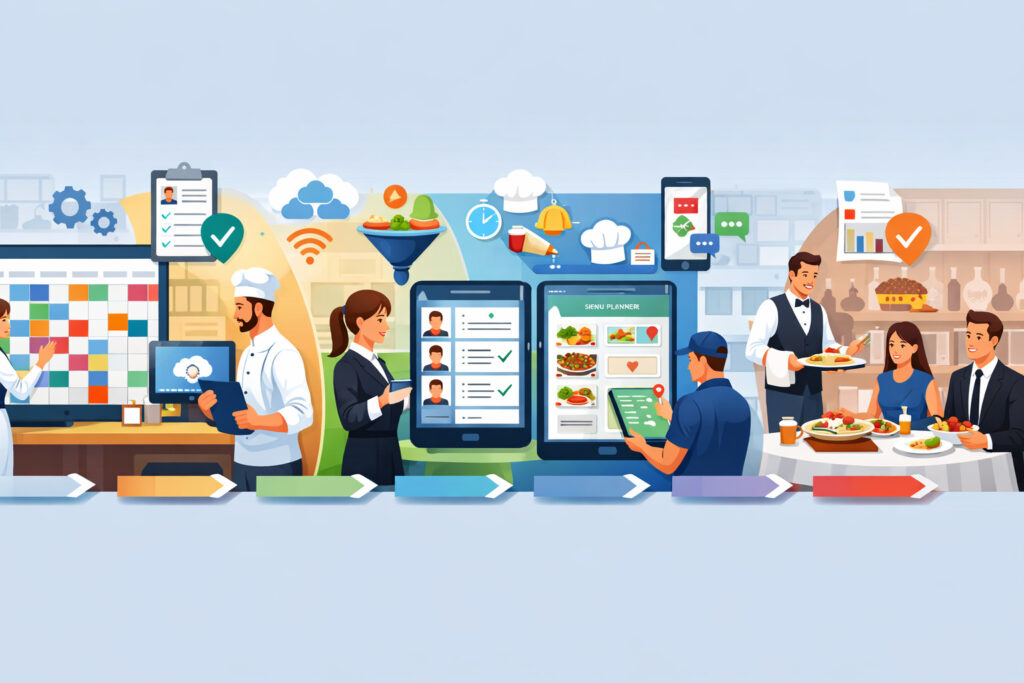
Implementation works best when you set up the system around your workflow and constraints—not around generic defaults. Here’s a practical approach that fits most catering operations.
Step 1: Map your current workflow (then simplify it)
Before you configure anything, map your process from inquiry to follow-up. Write it down in clear steps. Include who owns each step and what information is required.
Common workflow stages:
- Inquiry captured
- Availability check
- Quote created
- Quote approved
- Deposit collected (if applicable)
- Event confirmed
- Staffing assigned
- Production planning
- Packing and labeling
- Dispatch and delivery
- On-site execution (if applicable)
- Post-event closeout and invoice completion
This step is where you discover gaps like “we don’t have a defined cutoff for menu changes” or “drivers don’t get venue instructions consistently.”
Pro Tip: If a step depends on “someone remembering,” turn it into a scheduled task or reminder.
Step 2: Create event templates that match your reality
Build templates for your most common event types first. For example:
- Corporate lunch drop-off (standard)
- Corporate lunch drop-off (VIP / larger count)
- Full-service wedding
- Cocktail reception
- Restaurant catering add-on (in-house catering lane)
Each template should include:
- Default time blocks (prep, pack, dispatch, service)
- Default staffing roles and quantities
- Standard equipment pulls
- Common notes and reminders
- Task lists that generate prep lists and packing lists
Templates should be “good enough” for 80% of cases, with room for customization.
Step 3: Set capacity rules and availability windows
Capacity rules keep you from selling beyond your ability to deliver. Consider rules like:
- Maximum events per day by type
- Maximum total guest count per time window
- Minimum lead time for booking (e.g., 48–72 hours for drop-offs)
- Blackout dates and holidays
- Kitchen production caps (hot-heavy menus vs cold-heavy menus)
- Delivery window limits (how many drops per hour per driver)
If your system supports it, assign different rules for different services. Drop-offs might allow higher volume; full-service might require strict caps.
Pro Tip: Start with conservative limits. It’s easier to open capacity later than to recover from a blown weekend.
Step 4: Define roles, permissions, and approval steps
Clarify who can do what. Common permission tiers:
- Sales/inquiries (create leads, draft quotes, place holds)
- Managers (confirm events, assign staff, approve changes)
- Kitchen leads (view production schedule, update prep completion)
- Dispatch/drivers (view routes, update delivery status)
- Accounting/admin (invoices, deposits, payment status)
Also define approvals:
- Who can change event times inside a certain window
- Who can approve menu changes after cutoff
- Who can override capacity rules (and when)
Permissions prevent accidental changes and keep accountability clear.
Step 5: Connect CRM, payments, accounting, and POS (if applicable)
Integrations are powerful, but they’re also where implementations get slowed down. A practical sequence is:
- Go live with scheduling + templates first
- Add payments and deposit reminders next
- Add accounting integration when your invoicing flow is stable
- Add CRM/POS integrations if they improve data flow meaningfully
Key integration goals include:
- Avoid retyping customer info
- Sync payment status (deposit received vs pending)
- Push invoices to accounting
- Pull order details into event sheets/BEOs
Pro Tip: If integrations are delayed, create a standard “manual bridge” checklist so nothing falls between systems during transition.
Step 6: Train staff and run a controlled go-live
Training should be role-based:
- Sales: inquiry entry, holds, quotes, converting to confirmed
- Kitchen: production schedule, prep lists, packing lists
- Dispatch: routes, driver schedules, day-of updates
- Managers: overrides, conflict resolution, reporting
Run a pilot with a small set of events first. Fix template gaps quickly, then expand.
Common catering scheduling mistakes to avoid
Most scheduling problems are predictable. The good news: they’re also preventable when your system forces clarity.
Not blocking prep time and packing time
If your schedule only shows event times, your kitchen workload remains invisible. This leads to overbooking and rushed execution.
Fix it by:
- Creating default prep and packing blocks in templates
- Scheduling production phases for hot/cold components
- Assigning ownership (who is responsible for packing completion)
Pro Tip: Packing time expands when you’re busy. Build buffer into packing blocks on high-volume days.
Forgetting travel time, load-in, and venue constraints
Venue realities are not optional. Security check-in, elevators, long walks, and strict load-in windows can ruin timing.
Fix it by:
- Adding standard travel buffers by zone
- Including venue notes in the event record
- Scheduling driver departure times (not just arrival)
- Creating a “venue constraints” field that must be completed
Unclear staff roles and vague assignments
“Two servers” doesn’t tell anyone who is leading, who is setting up, or who is handling client communication.
Fix it by:
- Assigning a lead for every full-service event
- Defining role templates (lead, service, bar, runner, driver)
- Including responsibilities in the run-of-show
Not setting cutoff times for menu changes and headcount
Last-minute changes are a major cause of production chaos. You don’t need to be rigid, but you do need a policy.
Fix it by:
- Setting standard cutoffs (menu locked, headcount locked, final timeline confirmed)
- Using automated reminders to prompt customers
- Defining what changes are allowed after cutoff (and how fees apply)
Pro Tip: Put your cutoff policy in your confirmation materials and reinforce it with reminders. The schedule is only as stable as the rules behind it.
Choosing software: what to look for in 2026
Selecting online catering scheduling software is about fit, not trend. Prioritize operational requirements over bells and whistles.
Must-have features checklist (operations-first)
A practical must-have list includes:
- Shared calendar with multiple views
- Statuses (inquiry/hold/confirmed/completed)
- Conflict detection and double-booking prevention
- Templates by event type
- Task lists + reminders
- Prep lists and packing lists generation
- Staff scheduling for catering (roles, shifts)
- Delivery routing and driver scheduling (basic at minimum)
- Resource scheduling (vehicles/equipment)
- Mobile scheduling app for catering teams
- Real-time updates and notifications
- Exportable event sheets/BEOs
- Deposit scheduling and payment reminders
- Integration options (at least CRM/accounting/payments)
If a product can’t handle basic resource scheduling and production planning, it may still be useful—but you’ll rely heavily on manual workarounds.
Pricing model, user seats, and hidden costs
Common pricing structures:
- Per user/seat monthly subscriptions
- Tiered plans by feature set
- Add-ons for integrations, SMS reminders, or advanced reporting
- Implementation or onboarding fees
When comparing pricing, consider:
- Who actually needs a seat (kitchen leads? drivers?)
- Whether view-only access is available for some roles
- Whether mobile access costs extra
- Support availability and response time
Pro Tip: A lower-cost plan that forces you into manual workarounds can cost more in labor and errors than a plan with the features you truly need.
Integrations and support: what matters most
Integrations matter most when they eliminate repeated data entry:
- CRM (lead/customer info, communication history)
- Payments (deposit status, balances)
- Accounting (invoice sync, reconciliation)
- POS (for restaurant catering add-on flows)
Support matters because catering is time-sensitive. Evaluate:
- Training resources and documentation
- Live support hours
- Implementation help
- Product roadmap and update cadence
Scheduling features checklist by business type
Different catering models need different scheduling strengths. Use this table to prioritize features.
| Feature area | Drop-off catering | Full-service catering | Restaurant catering add-on |
|---|---|---|---|
| Catering calendar management | High | High | Medium |
| Online booking and availability | Medium–High | Medium | Medium |
| Catering booking workflow (inquiry → quote → confirm) | High | High | Medium |
| Kitchen production schedule | Medium–High | High | High |
| Prep lists and packing lists | High | High | Medium–High |
| Staff scheduling for catering | Medium | High | Medium |
| Delivery routing and driver scheduling | High | Medium | High |
| Resource scheduling (vehicles/equipment/venues) | Medium | High | Medium |
| Event run-of-show timeline | Low | High | Low–Medium |
| Automated scheduling reminders | High | High | Medium |
| Deposit scheduling and payment reminders | Medium | High | Low–Medium |
| Integration with CRM, POS, and accounting | Medium | High | High |
| Mobile scheduling app for catering teams | High | High | Medium |
Pro Tip: Restaurant operators often underestimate the value of a separate catering workflow. If catering shares the same kitchen and staff, you need scheduling visibility even more—not less.
Real-world scenarios: what scheduling looks like day-to-day
Seeing the workflow in context helps you design templates and rules that match reality.
Scenario 1: Corporate lunch drop-off program (high volume, repeatable)
A corporate drop-off program typically has repeating patterns: similar menus, delivery windows, and pack-out requirements. The biggest risks are double-booking deliveries and overloading the kitchen at the same time.
A solid scheduling approach includes:
- A template for standard drop-off lunches
- Lead time rules (e.g., order cutoff by a specific day/time)
- Default packing lists and labeling tasks
- Driver scheduling with departure times and buffer
- A daily production view that shows peak pack-out periods
Operationally, the system should enable quick scheduling decisions: “Can we add two more drop-offs at 12:00 without breaking the route plan?” You’ll also want automated reminders for recurring clients so they finalize headcount and menu choices on time.
Pro Tip: For corporate programs, treat delivery windows like appointments. If you accept flexible windows, you’ll spend the day negotiating timing instead of executing.
Scenario 2: Wedding catering (full-service, high complexity)
Wedding catering requires multi-layer scheduling: production spans days, staffing is specialized, and venues often have strict constraints.
A strong wedding workflow includes:
- A multi-phase kitchen production schedule (prep days + event day)
- Staffing roles with clear ownership (lead, service captain, bar lead)
- Resource scheduling for rentals, equipment, and transport
- Venue constraint tracking (load-in window, kitchen access, restrictions)
- A detailed event run-of-show timeline shared with the team
- Post-event tasks (equipment return, linen counts, damage checks)
The schedule should make the invisible visible—especially setup and teardown. Many teams schedule only “service time” and then wonder why staff arrives late or setup feels rushed.
Pro Tip: For weddings, schedule your earliest required on-site arrival based on venue access and setup requirements—not based on when guests arrive.
Scenario 3: Restaurant catering add-on (balancing dine-in + catering)
Restaurant catering adds complexity because catering competes with dine-in for kitchen time and staff. The goal is to prevent catering from disrupting service—or service from disrupting catering.
A practical setup includes:
- Separate catering templates that include production blocks
- Capacity rules tied to known dine-in peaks
- Staffing scheduling that avoids pulling critical line staff at rush times
- Delivery blocks that don’t collide with peak service windows
- Clear cutoff times for catering changes (so the kitchen isn’t reworking prep mid-service)
If the restaurant has a POS-driven workflow, integrations can help, but even without them, a dedicated catering calendar prevents “surprise” catering orders from showing up too late.
Pro Tip: If catering is profitable but chaotic, the issue is usually scheduling visibility. Give catering its own operational lane—even if it shares the same kitchen.
30/60/90-day adoption plan (practical rollout without chaos)
A successful rollout is staged. You’re building muscle memory, not just configuring software.
Days 1–30: Setup, templates, and pilot (Month 1)
Focus: foundations and one controlled workflow.
- Map your workflow and define event statuses
- Build 3–5 core templates (your most common event types)
- Create capacity rules (max events/day, lead times, basic resource constraints)
- Set up staff roles and permissions
- Pilot the system with a limited set of events (e.g., only drop-offs, or only weekday events)
- Hold weekly internal reviews: what broke, what confused staff, what templates need updates
Success looks like: the team can schedule, assign staff, and produce prep/packing lists for pilot events without reverting to texts and spreadsheets.
Pro Tip: Require that every pilot event lives in the system—even if you also track it elsewhere temporarily. Adoption fails when the system is “optional.”
Days 31–60: Automation, reminders, and integrations (Month 2)
Focus: reduce admin work and tighten handoffs.
- Turn on automated scheduling reminders (menu/headcount cutoffs, payment reminders)
- Expand templates (add equipment pulls, more detailed task lists)
- Introduce driver scheduling and delivery routing views
- Connect payment tools for deposit scheduling (if used)
- Add one integration that eliminates major retyping (CRM or accounting—whichever is most painful today)
- Train the team on day-of updates via mobile
Success looks like: fewer missed follow-ups, fewer last-minute surprises, and clearer day-of execution because tasks and schedules are visible to everyone.
Days 61–90: Reporting, optimization, and capacity utilization KPIs (Month 3)
Focus: turn scheduling data into operational decisions.
- Track capacity planning metrics (events per day, peak production hours, driver load, staffing hours)
- Review conflict patterns and adjust rules (buffers, caps, cutoff times)
- Standardize post-event notes for continuous improvement
- Build a weekly operations review using your schedule data
- Refine templates based on actual labor and execution feedback
Capacity utilization KPIs to start with:
- Events per day by type
- Peak kitchen hours (where production overlaps)
- Driver utilization (deliveries per driver per window)
- Staff hours scheduled vs actual (where possible)
- Late deliveries or compressed setup windows (tracked qualitatively if needed)
Pro Tip: Month 3 is where the system starts paying off long-term—because you stop guessing and start planning based on real workload patterns.
FAQs
Q1) What is online catering scheduling software?
Answer: Online catering scheduling software is a tool that helps catering businesses plan events and coordinate the work required to fulfill them. It typically combines a shared calendar with workflows for inquiries, quotes, confirmations, staffing, prep, packing, and deliveries.
The key value is that everyone sees the same plan in real time, which reduces miscommunication and double-booking. A strong system goes beyond dates by linking schedule entries to order details, tasks, and resource requirements.
Q2) Can customers book catering online?
Answer: Yes—many systems support online booking and availability, but it depends on your business model. For simple drop-off packages, online booking can work well when you set clear rules (lead time, time windows, menu options, guest count limits).
For complex full-service events, many businesses prefer online inquiry forms that feed into a quote workflow rather than instant booking. Either way, the “online” part should reduce back-and-forth, not create unrealistic customer expectations.
Q3) How do I prevent double-booking?
Answer: Preventing double-booking requires more than checking whether the date is open. You need conflict detection across time windows, staff, vehicles, and equipment.
Start by defining capacity rules (max events per day, minimum buffers, lead time limits) and using holds with expiration dates. Then ensure every confirmed event includes prep, packing, and travel blocks. When the schedule reflects the real workload, double-booking becomes much harder to accidentally create.
Q4) Does scheduling software handle staff and deliveries too?
Answer: Many modern catering scheduling systems do, but not all. Look for staff scheduling for catering (role-based shifts) and delivery routing and driver scheduling features, at least at a basic level.
Even simple driver schedules with departure times and route notes can prevent common delivery failures. If the system doesn’t handle deliveries well, you may need a separate dispatch tool, but that adds complexity—so prioritize an integrated approach when possible.
Q5) How do templates help catering scheduling?
Answer: Templates turn repeatable event types into repeatable operations. Instead of rebuilding the plan from scratch every time, templates can auto-create prep blocks, packing tasks, staffing roles, and reminders.
That saves admin time and reduces inconsistency, especially in high-volume drop-off programs. Templates also help train new staff because the workflow is baked into the schedule. The key is to create templates that match how your team actually works today, then refine them.
Q6) Can I schedule prep and packing tasks automatically?
Answer: Often, yes—especially if the system supports task lists tied to event types or menu items. Many tools can generate prep lists and packing lists based on order details, and assign tasks to specific roles with deadlines.
Even without full automation, you can create standardized task checklists that attach to each event. The goal is to reduce “tribal knowledge” so tasks don’t depend on one person remembering everything.
Q7) Does it work on mobile devices?
Answer: Most cloud-based catering scheduling tools offer a mobile scheduling app for catering teams or at least mobile-friendly access. Mobile matters because catering happens in kitchens, vans, and venues—not at desks.
Prioritize real-time updates and notifications so staff see changes immediately. Mobile access is also helpful for drivers and on-site leads who need event contacts, venue instructions, and run-of-show timelines without calling the office.
Q8) How much does catering scheduling software cost?
Answer: Costs vary widely based on features, number of users, and add-ons (like SMS reminders or integrations). Many systems charge per user/seat, while others charge by feature tier.
When estimating cost, include hidden factors like onboarding, training time, and whether kitchen and driver roles require paid access. The right system is the one that reduces operational risk and admin work enough to justify its monthly cost in your context—without forcing constant workarounds.
Q9) What integrations matter most?
Answer: The most valuable integrations are the ones that remove repeated data entry and reduce mistakes. Common priorities include CRM (customer info and communication history), payments (deposit status and reminders), accounting (invoice syncing), and POS (for restaurant catering add-ons).
If you’re choosing between integrations, start with the one that eliminates your biggest daily pain: retyping customer details, tracking deposits manually, or reconciling invoices after events.
Q10) How long does it take to implement?
Answer: Implementation time depends on complexity and discipline. A basic scheduling setup with a few templates can go live quickly, while a full workflow with integrations and advanced rules takes longer.
A practical approach is to pilot within the first month and expand over a 30/60/90-day rollout. The biggest factor is not the software—it’s whether your team consistently uses one system as the source of truth.
Q11) What’s the difference between a catering calendar and a full scheduling system?
Answer: A catering calendar shows event dates and times. A full scheduling system also includes prep and packing blocks, staff shifts, delivery windows, resource scheduling, tasks, reminders, and links to order details.
If your calendar doesn’t tell your kitchen what to prep or your drivers when to leave, you’re still relying on separate tools and memory. A scheduling system reduces that fragmentation and makes execution more predictable.
Q12) How do I handle tentative holds and inquiries?
Answer: Use event statuses and holds with expiration. An inquiry can be logged without blocking resources. A hold can reserve a time window temporarily while the customer decides, but it should expire if a deposit or confirmation isn’t received.
This prevents your schedule from being artificially full. Your sales team should also have clear rules about when a hold becomes a confirmed booking, ideally linked to deposit scheduling and payment reminders.
Q13) What should I schedule first: staff, prep, or deliveries?
Answer: Start by scheduling the event’s core time window and the associated prep and packing blocks. That creates a realistic workload picture. Then schedule deliveries (including travel buffers) and staff roles.
If you schedule staff first without prep blocks, you may underestimate workload. If you schedule deliveries without packing time, you’ll constantly run late. Build the schedule in the order the work actually happens: production → packing → dispatch → service.
Q14) How do I avoid last-minute chaos from menu changes?
Answer: Set clear cutoff times and enforce them with automated reminders. Your system should prompt customers to finalize headcount and menu selections by specific deadlines.
Internally, define what changes are allowed after cutoff (minor substitutions vs major revisions) and how they affect pricing or feasibility. The schedule should reflect these deadlines so the kitchen can plan production confidently.
Q15) What if my team resists switching from spreadsheets and texts?
Answer: Resistance usually comes from uncertainty and extra steps. Reduce friction by starting with a pilot, using simple templates, and training people based on their role. Make it clear that the schedule in the system is the source of truth.
Keep communication consistent: changes happen in the system first, not inside texts. Once staff see fewer surprises and clearer day-of instructions, adoption improves naturally.
Conclusion
Catering operations succeed when the schedule reflects reality: prep blocks, packing time, delivery buffers, staff roles, equipment constraints, and venue rules.
In 2026, online catering scheduling software and digital scheduling for catering businesses are most valuable when they create one reliable plan that everyone can follow—without chasing texts, retyping details, or relying on memory.
The best catering scheduling system is the one your team uses daily because it matches how you work. Start with core templates, simple capacity rules, and clear responsibilities. Then layer in automation and integrations once the basics are stable.
Over time, cloud-based catering scheduling tools can become more than a calendar—they become the operating system for your catering business.