By cloudcateringmanager February 19, 2026
Starting (or expanding) a catering business is exciting—and chaotic. You’re juggling inquiries, menus, pricing, staffing, prep, delivery timing, and last-minute changes… often in the same hour.
If you’re still tracking everything with texts, notebooks, and spreadsheets, it can work at first. But once orders grow, the cracks show fast: missed details, outdated versions of proposals, unclear deposits, and “who’s doing what” confusion.
That’s where cloud catering solutions for beginners come in. Think of them as a set of connected tools that help you run catering like a system—not a scramble.
This guide explains what cloud catering solutions are, how cloud catering management software works from lead to delivery, what features actually matter, costs in 2026, how to choose the right fit, and exactly how to adopt cloud catering software for small businesses without overwhelming your team.
What are cloud catering solutions?
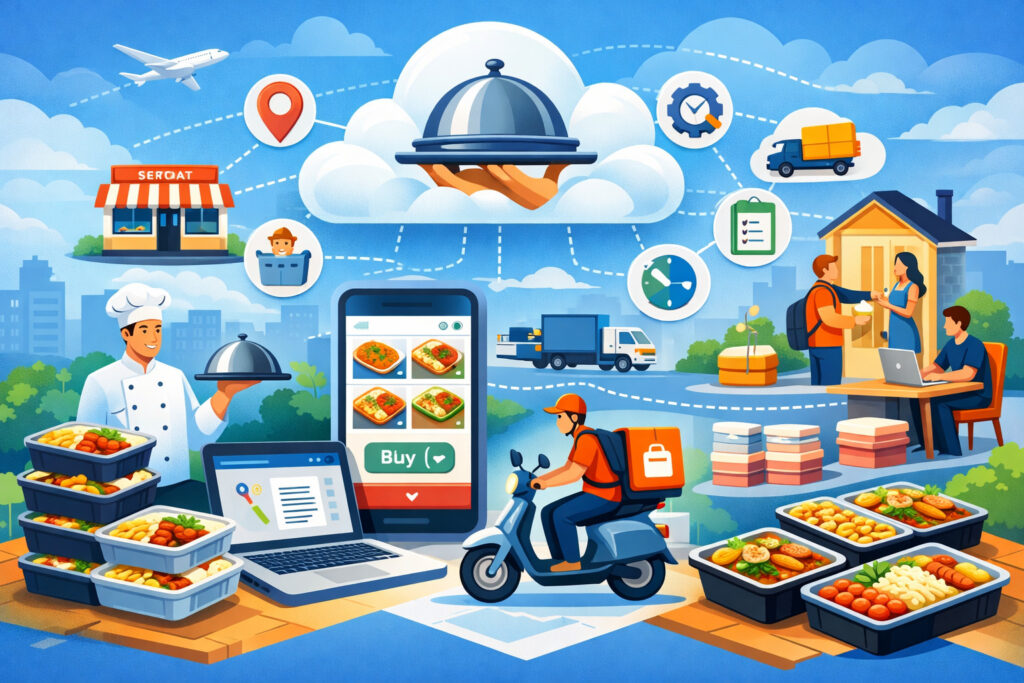
Cloud catering solutions are online tools that help you manage catering orders and operations in one place—accessible from anywhere with an internet connection.
In plain English: instead of keeping details scattered across a spreadsheet, email threads, printed forms, and payment links, you use one system to track the full catering process—lead, quote, contract, payment, prep, staffing, delivery, and reporting.
When people say cloud catering management software, they typically mean a platform that combines:
- Catering booking software (capturing inquiries and event details)
- A catering CRM system (tracking leads and customer history)
- Proposal/quote tools (often with catering proposal templates)
- Deposit and contract management (e-signature, terms, due dates)
- Catering invoicing and payments
- Kitchen prep and production sheets + packing lists
- Catering scheduling software for staff, vehicles, and event calendars
- Delivery and routing tools (sometimes built-in, sometimes integrated)
- Inventory and food cost tracking (basic or advanced)
- Dashboards and reports
How cloud catering management software works (step-by-step)
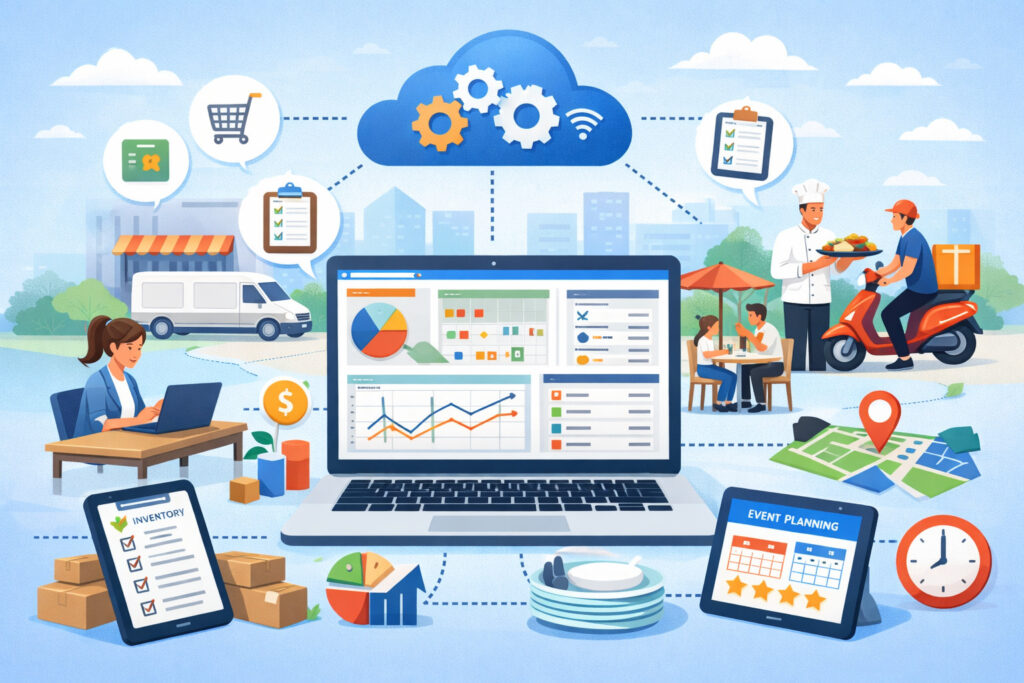
A good cloud system mirrors how catering actually happens. Here’s the most common workflow in 2026, explained in everyday terms:
The end-to-end catering workflow (simple diagram)
- Lead Capture
- Qualification + Follow-up (CRM)
- Quote / Proposal + Menu Builder
- Client Approval
- Contract + Deposit (e-sign + payment)
- Production Planning (prep + packing sheets)
- Staffing + Scheduling
- Delivery / Setup (routing + checklists)
- Final Payment + Closeout
- Reporting + Customer Retention
What this looks like in real life
- Lead capture: Someone fills out a form on your website or messages you with event details. Your system stores it as a lead.
- Quote/proposal: You build a proposal using a template: menu items, service style, guest count, rentals, staffing, delivery/setup fees.
- Approval + changes: Client requests adjustments. You update one proposal instead of editing multiple versions.
- Contract + deposit: Client e-signs the agreement and pays a deposit. Your system records due dates for remaining balances.
- Kitchen production: You generate kitchen prep and production sheets, portion counts, and packing checklists from the order details.
- Schedule + staffing: Assign staff roles and times. Sync to a calendar. Confirm call times and tasks.
- Delivery + setup: Use delivery and routing tools (built-in or integrated) and run event-day checklists.
- Closeout + reporting: Record final payment, log notes, and review performance: which packages sell, which events are most profitable, which lead sources convert.
Core features explained simply
Not every platform uses the same names. Below are the features you’ll see most often in cloud catering software for small businesses, explained like a coach would.
1) CRM and lead tracking
A catering CRM system is your organized “brain” for customers and inquiries.
What it typically includes:
- Lead forms (website + social links)
- Customer contact profiles
- Event details (date, location, headcount, service type)
- Notes and communication history
- Follow-up reminders
- Lead stages (New → Contacted → Proposal Sent → Won/Lost)
Why beginners love it:
You stop losing leads in your inbox and stop forgetting to follow up.
Mini-workflow:
- New inquiry comes in
- System assigns it a status and notifies you
- You send a template response + schedule a call
- You move the lead to the next stage
2) Proposal and menu builder
This is where you build quotes that look professional and stay consistent. A proposal/menu builder usually combines pricing, packages, add-ons, and service options.
Common tools inside:
- Menu catalogs (items + descriptions + dietary tags)
- Packages (per-person or per-tray pricing)
- Add-ons (staff, rentals, beverage service, setup fees)
- Automated calculations (guest count × price)
- Photo-friendly layouts
- Catering proposal templates for different event types
Beginner-friendly structure to use:
- Package A (drop-off)
- Package B (drop-off + setup)
- Package C (full-service with staffing)
3) Contracts and e-signatures
Contracts protect you and set expectations. In 2026, clients expect to approve and sign from their phone.
What “deposit and contract management” usually covers:
- Standard terms (payment schedule, cancellation, changes)
- E-signature
- Addendums (menu changes, date change)
- Automated reminders (balance due, final headcount deadline)
Beginner contract sections to include:
- Event basics (date/time/location, headcount)
- What’s included (food, staffing, rentals)
- Payment schedule (deposit + final due date)
- Cancellation policy and change fees
- Liability and setup responsibilities
- Service time limits (e.g., buffet service window)
4) Online payments and deposits
This covers catering invoicing and payments plus deposits, partial payments, and final balances.
Typical payment options:
- Deposit at signing
- Milestone payments (e.g., 50% now, 50% later)
- Partial payments (client pays in installments)
- Tips (optional)
- Stored payment links (embedded in invoices/proposals)
What to look for as a beginner:
- Clear payment tracking (paid/partially paid/unpaid)
- Deposit required to confirm booking
- Automated receipts
- Refund and adjustment capability
- Simple reporting for reconciliation
5) Kitchen prep lists and packing sheets
This is where a catering system becomes operational—not just “sales software.”
Kitchen prep and production sheets help you translate an order into action:
- Portion counts by item
- Prep tasks by station (hot line, cold prep, desserts)
- Ingredient-level lists (optional, depending on system)
- Production timing (what gets made when)
Packing sheets help you avoid forgotten items:
- Trays, lids, labels
- Serving utensils
- Sternos, chafers, fuel
- Condiments, napkins, plates (if included)
- Setup instructions
Simple packing workflow (text diagram):
Pro Tip: Add a final “two-person check” before departure—one packs, one verifies.
6) Staffing and scheduling
Catering scheduling software helps you assign people and plan labor.
Common scheduling features:
- Event calendar (views by day/week/month)
- Staff assignments (roles + hours)
- Time windows (prep, load-in, service, breakdown)
- Crew notes (uniform, arrival instructions)
- Mobile access for staff updates
Beginner staffing roles to standardize:
- Prep cook
- Pack/runner
- Driver
- On-site lead
- Server/bartender (if applicable)
7) Reporting dashboards
Reporting tells you what’s working (and what’s quietly draining money).
Beginner-friendly dashboards to prioritize:
- Leads by source (website, referrals, event planners)
- Win/loss rate (proposals sent vs. booked)
- Revenue by package
- Event types (corporate, weddings, birthdays)
- Labor hours per event (if tracked)
- Delivery fees collected vs. delivery costs (if you estimate fuel/time)
Why small businesses choose cloud catering software
Small operators typically choose cloud tools for practical reasons—not because they love tech.
The real benefits (without hype)
- Fewer errors: One shared system reduces “wrong version” proposals and missed details.
- Time savings: Templates and automation reduce repetitive work (follow-ups, invoices, reminders).
- Better customer experience: Clients can review, approve, sign, and pay without back-and-forth.
- Scalability: More events don’t automatically mean more chaos.
- Team clarity: Everyone sees the same prep lists, schedules, and notes.
- Mobile access for catering teams: Owners and managers can update orders and check status on the go.
Cloud-based vs desktop software (and spreadsheets)
Many beginners start with spreadsheets and a basic invoicing tool. That’s normal. But once you hit consistent weekly volume, manual systems become fragile.
Cloud-based vs desktop software (and manual tools): side-by-side comparison
| Category | Cloud-based catering tools | Desktop / Local software | Spreadsheets + manual process |
|---|---|---|---|
| Access | Any device, anywhere | Usually one computer/location | Anywhere, but not standardized |
| Updates | Automatic | Manual updates | Not applicable |
| Collaboration | Real-time shared access | Limited | Version confusion common |
| Workflow | Connected lead→quote→contract→prep | Often fragmented | Highly fragmented |
| Templates | Built-in and reusable | Depends on software | DIY, often inconsistent |
| Mobile access | Typically strong | Often limited | Possible, but messy |
| Integrations with POS and accounting | Common in modern stacks | Varies | Usually manual export/import |
| Security | Vendor-managed (varies) | Your responsibility | Depends on your file management |
| Scaling | Easier to add users/events | Can be harder | Becomes error-prone fast |
Pro Tip: The biggest difference is not “cloud vs desktop.” It’s connected workflow vs scattered tools.
Costs in 2026: what you’ll really pay for
Most cloud catering management software uses a subscription pricing model. Your total cost depends on features, user count, and integrations.
1) Subscription tiers (typical structure)
Most systems price by tier, often something like:
- Starter: basic proposals, invoices, simple CRM
- Growth: contracts, deposits, automation, kitchen sheets
- Pro: advanced reporting, permissions, multi-location, deeper integrations
Feature tier comparison table (example)
| Feature | Starter | Growth | Pro |
|---|---|---|---|
| Lead capture + basic CRM | ✓ | ✓ | ✓ |
| Proposal templates + menu builder | ✓ | ✓ | ✓ |
| Contracts + e-signature | — / add-on | ✓ | ✓ |
| Deposits + partial payments | Limited | ✓ | ✓ |
| Kitchen prep and production sheets | Limited | ✓ | ✓ |
| Catering scheduling software | — | ✓ | ✓ |
| Delivery and routing tools | — / integrate | Integrate | ✓ / integrate |
| Inventory and food cost tracking | — | Limited | ✓ |
| Reporting dashboards | Basic | Standard | Advanced |
| User permissions + roles | — | Limited | ✓ |
Pro Tip: Don’t pay for “Pro” reporting until you’re consistently entering data the same way.
2) Add-ons and integrations
Add-ons are common. Expect optional costs for:
- Extra users
- E-signature packs (if not included)
- SMS notifications
- Advanced automation
- Integrations with POS and accounting
- Payment processing features (depending on provider)
3) Setup and training expectations
Even beginner-friendly tools require setup. Plan for:
- Template setup (proposals, contracts, invoices)
- Menu catalog setup (items, packages, photos)
- Tax and service charge rules
- Payment settings and deposit policies
- Staff roles and scheduling preferences
- Basic import of contacts and past clients
Realistic expectation:
Most small teams take a few weeks to feel “smooth,” especially if you’re migrating from spreadsheets.
How to choose the right solution
Choosing cloud catering software for small businesses is easiest when you start from your catering model, not the feature list.
Step 1: Define your catering style
Ask:
- Are you primarily drop-off catering (low staffing, high volume)?
- Are you primarily full-service (staffing, rentals, onsite complexity)?
- Are you mixed?
Drop-off prioritizes:
- Online ordering, delivery scheduling, packing sheets, payment links
Full-service prioritizes:
- Staffing schedules, rentals, contracts, detailed proposals, event timelines
Step 2: Match software to your current size (not your dream size)
If you’re new, you likely need:
- One clean CRM pipeline
- Reliable proposal + contract + deposit flow
- Production and packing sheets
- Basic scheduling calendar
If you’re already busy, you may need:
- Automation (follow-ups, balance reminders)
- Staff roles and shift planning
- Better reporting
- Integrations (POS, accounting)
Step 3: Use a must-have checklist
Here’s a beginner-friendly checklist you can copy into your notes.
Must-haves for most beginners
- Lead capture form and CRM stages
- Proposal builder with templates
- Contracts + e-signature
- Deposits and online payments
- Kitchen prep and packing sheets
- Event calendar (basic scheduling)
- Mobile access for catering teams
Nice-to-haves (add later)
- Delivery routing optimization
- Inventory and food cost tracking
- Advanced reports
- Automated SMS updates
- Deep POS integrations
Step 4: Test with a real order (not a demo script)
When you trial tools, run one realistic scenario:
- A 35-person drop-off lunch or
- A 75-person buffet with staffing and setup
Try to do:
- Create the lead
- Build a proposal
- Apply changes
- Send contract
- Collect a deposit
- Generate kitchen sheets
- Create a packing checklist
- Add it to the schedule
If any step feels confusing, it will only get harder when you’re busy.
Integrations: connecting the tools you already use
Integrations reduce duplicate entry. They can also create confusion if you connect too much too soon.
1) Accounting tools
Most catering businesses want invoices and payments to sync cleanly with accounting.
Look for:
- Customer and invoice syncing
- Payment reconciliation
- Tax mapping
- Export options if full integration isn’t available
Pro Tip: If you’re new, start with clean monthly exports before you attempt complex syncing rules.
2) POS systems
If you operate a restaurant and add catering, integrations with POS and accounting matter.
POS integration can help with:
- Menu consistency
- Taxes and service charges
- Sales reporting alignment
But many catering menus differ from in-house menus. Be sure the system supports:
- Catering-specific packages and pricing
- Delivery and service fees
- Event-specific notes and production sheets
Pro Tip: Keep catering pricing separate from dine-in pricing if your costs and labor are different (they usually are).
3) Payment processing
Payment integration is central because it powers deposits, invoices, and receipts.
Look for:
- Support for deposits and partial payments
- Clear fees and payout timing visibility
- Refund handling
- Secure customer payment experience
Pro Tip: Deposits are operational, not just financial. They confirm commitment and let you plan confidently.
4) Calendar and email tools
These integrations help you stay organized:
- Sync events to your calendar
- Automated confirmation emails
- Team notifications
Beginner approach:
Start with calendar sync + email templates. Add SMS later if you truly need it.
Implementation tips for beginners
Switching systems doesn’t have to be painful. You just need a simple plan.
Migrating from spreadsheets (without losing your mind)
Step-by-step migration plan:
- Export your contacts list (name, phone, email, notes)
- Export your event history (date, client, total, event type)
- Decide what you’re migrating:
- Must migrate: contacts + active/pending leads
- Optional: old invoices and closed events
- Clean up duplicates and missing fields
- Import into the new system
- Spot-check 20 records for accuracy
Setting up templates and pricing
Templates are where beginners save the most time.
Start with these templates:
- Proposal template for drop-off events
- Proposal template for full-service events
- Contract template (drop-off)
- Contract template (full-service)
- Invoice template with deposit line items
Pricing setup tips:
- Build 3–5 packages you can deliver consistently
- Standardize add-ons (delivery fee, setup fee, staffing hourly)
- Include clear service boundaries (service time windows, setup scope)
Training staff (simple and realistic)
Training fails when it’s too broad. Keep it role-based.
Role-based training approach:
- Sales/admin: lead → proposal → contract → payment
- Kitchen lead: production sheet → prep schedule → labels
- Pack/runner: packing sheet → load-out checklist
- Driver/on-site lead: delivery notes → setup instructions → proof of delivery
Common beginner mistakes (and how to avoid them)
Mistake 1: Overbuying features
Buying the most expensive tier doesn’t make your workflow mature overnight.
Fix: Start with essentials, master them, then upgrade.
Mistake 2: Skipping workflow planning
If you don’t define “how an order moves,” the system becomes another place to store chaos.
Fix: Choose a simple pipeline stage flow and keep it consistent.
Example stages:
- New lead
- Contacted
- Proposal sent
- Awaiting approval
- Booked (deposit paid)
- In production
- Delivered
- Closed
Mistake 3: Ignoring data reporting
If you don’t track the basics, you can’t learn what to repeat.
Fix: Track at least:
- Lead source
- Event type
- Total order value
- Package selected
- Labor hours estimate (even rough)
Mistake 4: Not standardizing menus and add-ons
Unlimited customization sounds client-friendly, but it creates operational overload.
Fix: Offer structured packages with optional add-ons.
Mistake 5: Not building checklists for execution
Even the best platform can’t stop a forgotten serving utensil.
Fix: Create a packing checklist template per event type and make it mandatory.
Real-world beginner scenarios
Scenario 1: Home-based caterer (small team, high touch)
Challenges:
- Lots of inquiries
- Many custom requests
- Limited time for admin
Best-fit tools:
- Catering CRM system with follow-up reminders
- Proposal templates to standardize pricing
- Deposits + e-sign contracts
- Kitchen prep and packing sheets
Simple winning workflow:
- Form inquiry → proposal within 24 hours → deposit to confirm → prep sheet the day before → packing checklist day-of
Pro Tip: Your first automation should be a “proposal follow-up” reminder. It prevents quiet lead loss.
Scenario 2: Restaurant expanding into catering
Challenges:
- Catering competes with dine-in operations
- Need clear production planning
- Confusing pricing differences
Best-fit tools:
- Cloud catering management software with production sheets
- Integration options for POS and accounting
- Scheduling and staffing planning
- Menu builder that supports catering packages
Operational rule to set:
- Catering cut-off time for next-day orders
- A defined prep window separate from service rush
Pro Tip: If catering is growing, assign one person as “catering captain” for order accuracy—even if they also wear other hats.
Scenario 3: Corporate lunch program startup (recurring clients)
Challenges:
- Repeat orders and recurring schedules
- Invoicing and billing cycles
- On-time delivery expectations
Best-fit tools:
- Online catering ordering platform (or strong reordering workflow)
- Recurring invoices or billing management
- Delivery and routing tools
- Reporting dashboards (to track best sellers)
Workflow to aim for:
- Client selects from a limited rotating menu → automated confirmation → production sheets → delivery notes → monthly reporting
30/60/90-day adoption roadmap
Here’s a beginner-friendly plan that avoids “big bang” implementations.
Month 1 (Days 1–30): Setup + data migration
Goal: Get the basics live for new orders.
Actions:
- Choose your pipeline stages (lead → booked → delivered)
- Import contacts and active leads
- Set up proposal templates (drop-off + full-service)
- Build your starter menu catalog (8–12 key items)
- Configure deposits and payment rules
- Create a simple contract template
- Train the owner/manager on the full workflow
Success checkpoints:
- You can send a proposal in under 15 minutes
- You can collect a deposit and confirm booking digitally
- You can generate a basic prep list
Month 2 (Days 31–60): Automation + refinement
Goal: Reduce admin work and improve consistency.
Actions:
- Add automated reminders (follow-ups, balance due, headcount deadline)
- Expand proposal templates for common event types
- Add packing sheet templates per category (drop-off buffet, boxed meals, desserts)
- Configure scheduling workflows (staff assignments + event calendar)
- Connect basic integrations (calendar + email)
Success checkpoints:
- Fewer missed follow-ups
- Fewer order detail errors
- Team can find event notes quickly
Month 3 (Days 61–90): Optimization + analytics
Goal: Use reporting to make better decisions.
Actions:
- Review lead sources and conversion rates
- Identify your top 5 best-selling items and top 3 packages
- Analyze event profitability signals (even basic)
- Refine pricing and add-ons based on patterns
- Consider advanced integrations (accounting sync, routing tools, inventory tracking)
Success checkpoints:
- You know which marketing channels convert
- You know which packages drive most revenue
- You can forecast staffing needs from the schedule
FAQs
Q1) What is cloud catering software?
Answer: Cloud catering software is an online system that helps you manage catering leads, proposals, contracts, payments, kitchen production, scheduling, delivery, and reporting—accessible from any device.
Q2) Do I need catering software for a small business?
Answer: Not on day one, but it becomes valuable quickly once inquiries and events increase. If you’re missing follow-ups, losing details, or spending hours on admin, small catering business software can help you stay organized.
Q3) How much does cloud catering software cost?
Answer: Most tools use a subscription pricing model with tiered plans. Costs vary based on features, number of users, and add-ons like e-signature or advanced automation.
Q4) Can customers book catering online?
Answer: Yes, many systems include an online catering ordering platform or integrate with one. Beginners often start with inquiry forms and later add full online ordering when menus and operations are standardized.
Q5) Is cloud catering software secure?
Answer: Reputable providers use modern security practices like encrypted connections and controlled user access. As a user, you still need strong passwords, limited permissions, and good internal practices.
Q6) How long does it take to implement?
Answer: For beginners, a practical setup often takes a few weeks to feel smooth—especially if you’re migrating from spreadsheets and building templates.
Q7) Can it handle deposits and partial payments?
Answer: Many systems support deposit and contract management plus partial payments and balance tracking. Confirm that deposits can be required to confirm a booking.
Q8) Does it integrate with accounting tools?
Answer: Many platforms integrate with accounting tools or offer exports. If you need clean bookkeeping, prioritize invoice and payment reporting (and add deeper syncing later).
Q9) What features should beginners prioritize?
Answer: Start with:
- CRM + lead pipeline
- Proposal templates
- Contracts + e-sign
- Deposits and payments
- Kitchen prep and packing sheets
- Basic scheduling calendar
- Mobile access for catering teams
Q10) Can I switch systems later?
Answer: Yes, but switching is easier when your data is clean. Choose a tool with export options and avoid building overly complex workflows you can’t replicate elsewhere.
Q11) What’s the difference between cloud-based vs desktop software?
Answer: Cloud-based tools typically offer easier access, automatic updates, and better collaboration. Desktop tools can be limited by location and manual updates. The bigger difference is workflow connectivity.
Q12) Do I still need spreadsheets?
Answer: Sometimes. Many operators keep a spreadsheet for high-level tracking or costing. The goal is to stop using spreadsheets as the main system of record.
Q13) Will software reduce mistakes automatically?
Answer: Software helps reduce mistakes by standardizing information and checklists—but only if your team uses it consistently and you build good templates.
Q14) What about event planners who want fast proposals?
Answer: A strong proposal builder with reusable catering proposal templates and clear add-ons helps you respond quickly while staying accurate.
Q15) Is inventory and food cost tracking necessary at the start?
Answer: Not always. Many beginners start with basic pricing rules and later add inventory and food cost tracking when volume and menu complexity grow.
Conclusion
If you’re new to catering tech, here’s the mindset that works: start simple, connect the workflow, and standardize what you sell. The best cloud catering solutions don’t just make you look professional—they help you deliver consistently, train your team faster, and grow without losing control.
The fastest win for beginners is building a reliable system for: lead → proposal → contract → deposit → prep sheets → delivery checklist. Once that’s running smoothly, you can add automation, integrations, and deeper reporting.